


The Whole Guide, In One File
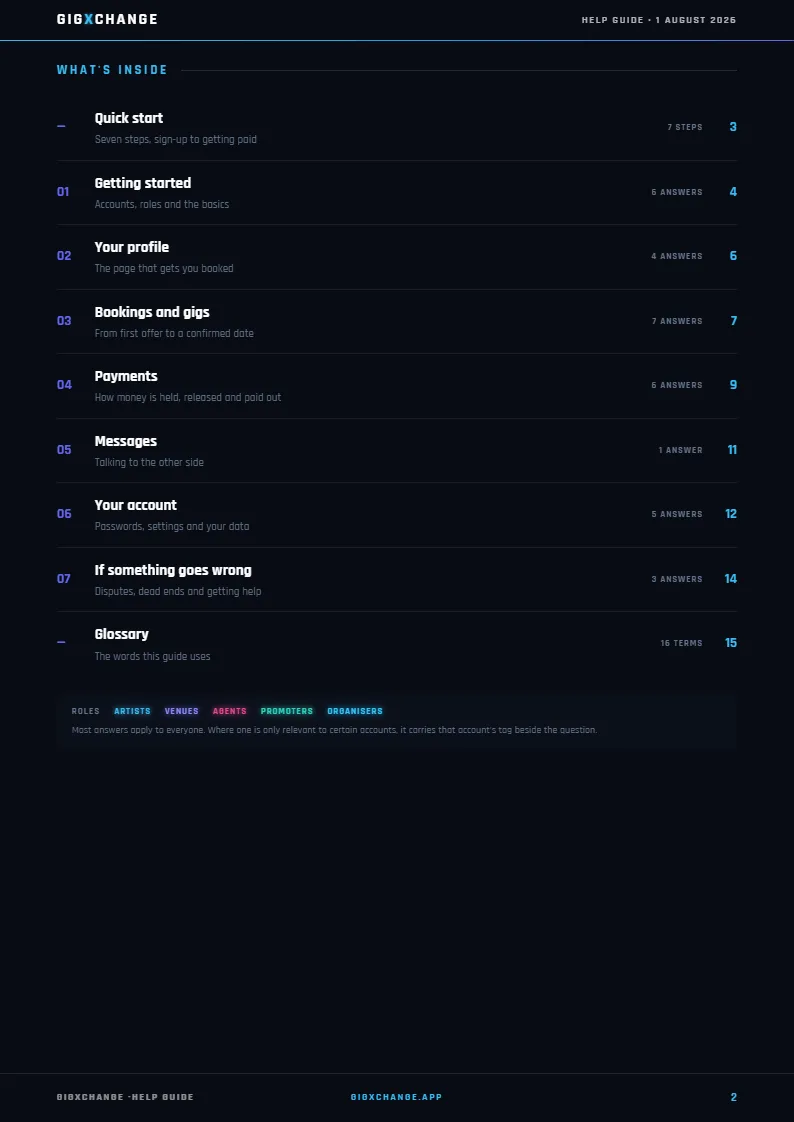
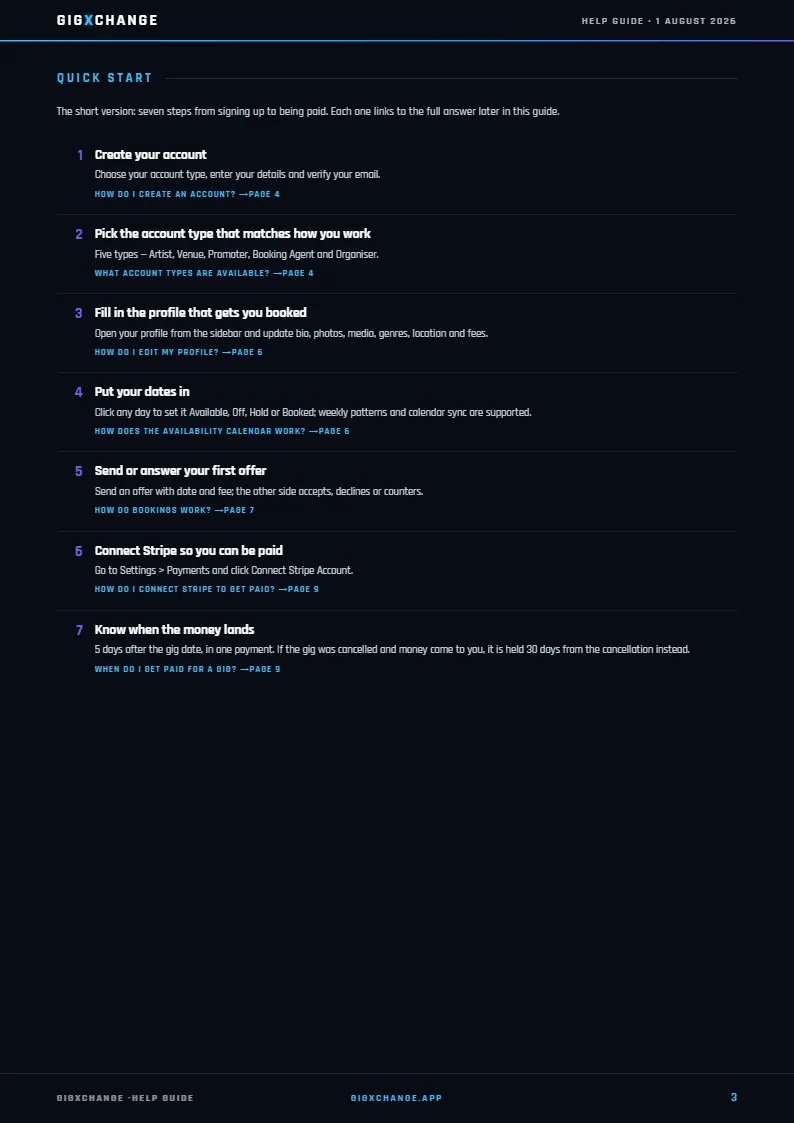
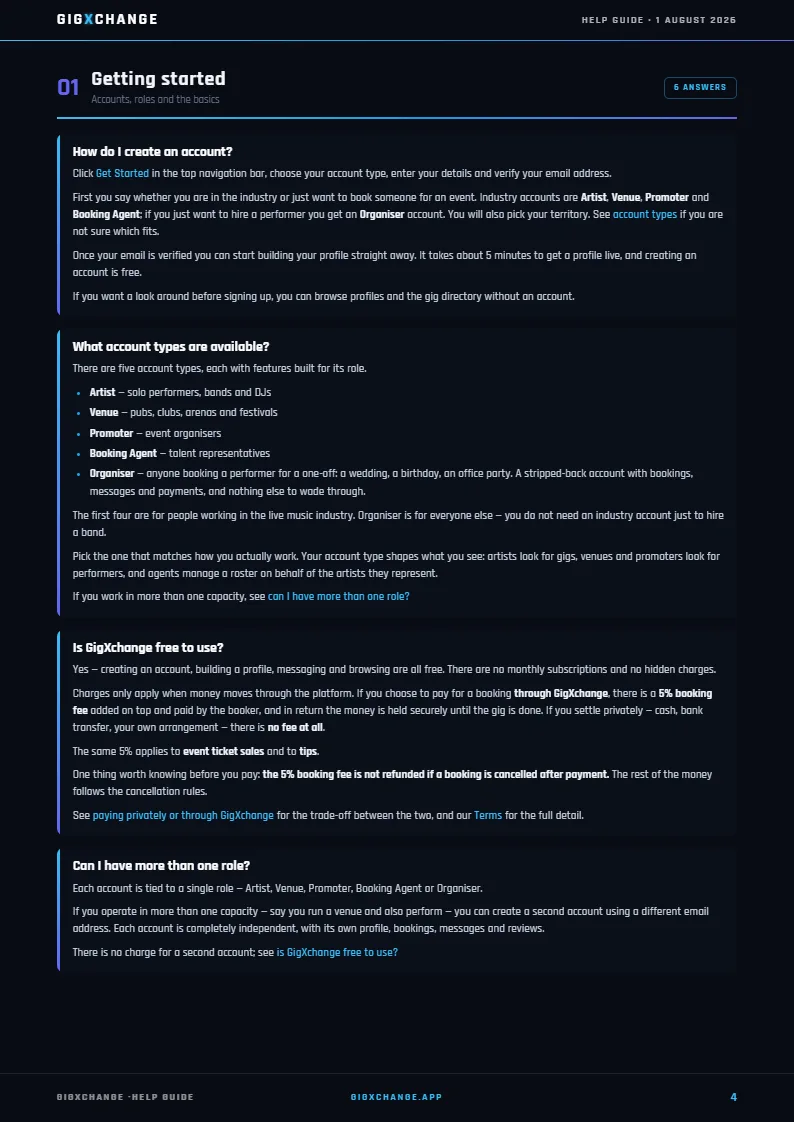
Every answer on this page as one document — a quick start, all 103 answers and a glossary. Flip through all 45 pages below, or download the PDF.
Help & FAQ
Every answer, in plain English.
| Create account | |
| Reset password | |
| How bookings work | |
| Cancel a booking | |
| How payments work | |
| Leave a review | |
| Edit my profile | |
| Is it free? |
| 01 | Create your free profileSign up as an artist, venue, agent, promoter or organiser — you’re live and discoverable in about 5 minutes. |
| 02 | Book directMessage, agree the fee, sign the auto-generated contract and secure it with a Stripe deposit — no middlemen, no agency markup. |
| 03 | Play & get paidThe balance releases 5 days after the gig date — every step tracked in one place. |
GigXchange is the UK's peer-to-peer live music marketplace — direct bookings between artists, venues, agents, promoters and organisers across 40+ cities. No middlemen, no agency markup, Stripe-secured payments. Browse member profiles, explore the Gig Directory, or check live rate benchmarks on the GX Index.

Everything you need to get started, book gigs, manage payments, and make the most of GigXchange. Can't find your answer? Get in touch.
Search every help answer, guide and walkthrough — answers open exactly where you need them.
Last updated: 4 November 2026
103 answers across accounts, profiles, bookings, payments and more — whether you're an artist looking for your first gig, a venue searching for live acts, a booking agent managing a roster, a promoter building a lineup, or an organiser running an event.
Sign up as an artist, venue, agent, promoter or organiser — you’re live and discoverable in about 5 minutes.
Message, agree the fee, sign the auto-generated contract and secure it with a Stripe deposit — no middlemen, no agency markup.
The balance releases 5 days after the gig date — every step tracked in one place.
GigXchange is the UK's peer-to-peer live music marketplace — direct bookings between artists, venues, agents, promoters and organisers across 40+ cities. No middlemen, no agency markup, Stripe-secured payments. Browse member profiles, explore the Gig Directory, or check live rate benchmarks on the GX Index.
Every topic, one tap away. Each answer also has its own page.
| 01Getting Started15 answers - Create your account, choose your role, and find your feet. | |
| 02Your Profile24 answers - The page that gets you booked — and how to make it work harder. | |
| 03Bookings & Gigs24 answers - From first offer to a confirmed date, and what happens if plans change. | |
| 04Fees & Payments9 answers - How money is held, when it is released, and what the fee covers. | |
| 05Messages4 answers - Talking to the other side, and sending offers in the chat. | |
| 06Events8 answers - Listings, ticketing and your venue page. | |
| 07Your Account16 answers - Passwords, settings, and control over your data. | |
| 08If Something Goes Wrong3 answers - Disputes, dead ends, and how to reach us. |
8 topics. Tap a question to open it.
Create your account, choose your role, and find your feet.
Click Get Started in the top navigation bar, choose your account type, enter your details and verify your email address.
First you pick I am a...: an Artist, venue, agent or promoter, or an Event organiser booking someone for an event. Industry accounts are Artist, Venue, Promoter and Agent; if you just want to hire a performer you get an Organiser account. You will also pick Your territory. See account types if you are not sure which fits.
Once your email is verified, a short setup wizard builds your profile - see what are the setup steps after I sign up? It takes about 5 minutes to get a profile live, and creating an account is free.
If you want a look around before signing up, you can browse profiles and the gig directory without an account.
Read this answer on its own page
There are five account types, each with features built for its role.
The first four are for people working in the live music industry. Organiser is for everyone else — you do not need an industry account just to hire a band.
Pick the one that matches how you actually work. Your account type shapes what you see: artists look for gigs, venues and promoters look for performers, and agents manage a roster on behalf of the artists they represent.
If you work in more than one capacity, see can I have more than one role?
Read this answer on its own page
Yes — creating an account, building a profile, messaging and browsing are all free. There are no monthly subscriptions and no hidden charges.
Charges only apply when money moves through the platform. If you choose to pay for a booking through GigXchange, there is a 5% booking fee added on top and paid by the booker, and in return the money is held securely until the gig is done. If you settle privately — cash, bank transfer, your own arrangement — there is no fee at all.
The same 5% applies to event ticket sales and to tips.
One thing worth knowing before you pay: the 5% booking fee is not refunded if a booking is cancelled after payment. The rest of the money follows the cancellation rules.
See paying privately or through GigXchange for the trade-off between the two, and our Terms for the full detail.
Read this answer on its own page
Each account is tied to a single role — Artist, Venue, Promoter, Booking Agent or Organiser.
If you operate in more than one capacity — say you run a venue and also perform — you can create a second account using a different email address. Each account is completely independent, with its own profile, bookings, messages and reviews.
There is no charge for a second account; see is GigXchange free to use?
Read this answer on its own page
Yes. The entire app is built to work on a phone, so everything you can do on a laptop you can do on the move — messages, bookings, availability and payments.
There are also native apps: GigXchange on Google Play for Android, and on the App Store for iPhone and iPad. Or just add the site to your home screen.
Most people end up doing the quick things on their phone — replying to an offer, marking a gig complete, checking a date — and the longer jobs like building out a profile on a bigger screen.
Read this answer on its own page
Most UK grassroots venues already have a page in the GigXchange directory, built from public listings rather than by the venue. If one of them is yours, you can take it over.
Find your venue in the directory and open its page. Part-way down, in the middle card of the row that also holds the map and the booking information, you will see Is this your venue? — press Claim this venue. That takes you to venue signup with the listing already attached, so the page becomes yours as soon as the account is made. It is a free account, no card needed, and takes about 30 seconds.
Once it is yours you can:
A claimed page says Claimed to visitors, and the details on it are credited to the venue rather than to us. That is the whole point of claiming — a page nobody has claimed is only as good as the public information behind it.
If something on an unclaimed page is simply wrong, you do not have to claim it to fix it: use Send a Correction on the page.
New to GigXchange entirely? Start at how do I create an account?
Read this answer on its own page
Creator Tools is the page that lists every tool your account can use, and the Promo Kit is a shorter page of the tools for promoting yourself. Both are free for members.
Creator Tools. Open Dashboard and choose Creator Tools - on a venue account the same page is called Venue Tools. The tools are grouped into chapters by the job they do: for artists, agents and promoters that is getting found, getting booked, show night and getting paid; for venues it is filling the stage, running the night, promoting and your venue. Each tool has an Open link, and many have See example, which shows a real finished one before you make your own. The Quick Access list down the side links to every tool on the page.
You only see tools your account can actually open - a stage plot or setlist is for artists, the licensing checks are for venues - and a tool whose page you have switched off is left out.
Promo Kit. Open Profile and choose Promo Kit. It holds four tools: Member Spotlight, Electronic Press Kit, Tour Poster and Flyer Builder. Each one builds from your profile, so keeping your profile complete makes all of them better.
Both pages also carry the user guides shelf - see where do I find step-by-step guides?.
On an organiser account there is no Creator Tools page and no Promo Kit. Either page can be switched off in Add-ons - see can I hide app pages I don't use?.
Read this answer on its own page
Once your venue's page is yours (see how do I claim my venue's page?), you can change it in the app.
The editor follows the same order as your public page: photos and tagline, quick facts (capacity, the nights you put on live music, your usual start time, the genres you book), the room and its equipment, opening hours, what you book and your curfew, your address, the description and your links.
Beside the fields you will see what is saved on your page now, so you can tell what you are changing. Changes you save usually reach your public page within the hour.
A few things to know:
Read this answer on its own page
Once your email is verified, a short setup wizard builds your profile. Until you finish it, the app brings you back to it whenever you sign in, so it is worth doing in one go.
The steps depend on your account type:
Only the first step has fields you must fill in: the name people will see (your performing name, venue, agency or company), a Main Contact Name, and your City. Organisers give their own name or their organisation's name, and a city. Next stays greyed out until those are done.
Everything after the first step is optional. You can skip the photo and add one later, and the rest - genres, fees, capacity, commission and so on - can be filled in or changed whenever you like by editing your profile; see how do I edit my profile?
Use Back to return to an earlier step. On the last step, press Complete Setup and your profile goes live.
Signed in to the wrong account? On the first step the left-hand button is Sign out.
New to the account types? See what account types are available?
Read this answer on its own page
Your dashboard is the home screen you land on after signing in. Open it any time from the menu: Dashboard, then Overview. Organiser accounts do not have a dashboard.
From the top down:
Next to My activity are two links: Your Links, every public page you have made in one place (see where do I find all my links?), and Noticeboard (see what is the Noticeboard?).
The round icons beside your name have no words on screen; hover one to see what it does. They include the bell for your notifications, A note from the founder, and Refresh dashboard, which reloads every figure.
For your numbers over time, open Insights - see what do my Insights show?
Read this answer on its own page
Four tools on the GigXchange website work with no account at all:
Everything else on the Free Tools page - setlists, stage plots, tour posters, flyers, invoices, the EPK builder, booking contracts, the availability widget, Post a Gig, Gig Rescue and the compliance checks - lives inside the app and needs a free account, because each one builds on your own profile, dates and bookings and saves your work.
Creating an account is free; see how do I create an account? and is GigXchange free to use?
Read this answer on its own page
They are three different things, and one leads to the next.
A gig is a request for a performer. A venue, promoter or agent posts it ("we need an act for Saturday 14th, budget £300"), and artists apply. Artists never post gigs - they advertise on their profile and apply to gigs instead. Use Post a Gig to list one.
A booking is the deal itself. A booking usually starts with an offer or an accepted application: when a venue accepts an application, or someone sends a booking offer directly from a profile, a booking is created between the two members. It holds the date and the fee, and it moves through its own stages, such as pending, accepted, confirmed and completed. A night arranged elsewhere can be recorded as a booking too - see how bookings work.
An event is the public listing. Once a booking is agreed, the venue or promoter can turn it into an event with Publish as Event - the page fans see, with the line-up, the time and, if you want, tickets. Apart from a recurring open mic, which creates its own event dates, a gig and an event are never linked directly; the booking in the middle is what connects them.
You do not have to use all three. A venue can post a gig and never publish an event; an artist can be booked straight from their profile with no gig at all; and an event can be created on its own for a night that was arranged elsewhere.
Read this answer on its own page
Open the menu: Dashboard, then What's New. It is a running list of everything we have shipped, newest first, and it only shows the features that apply to your account type.
The newest feature leads the page. Under it, Latest holds the next few. On each one:
Below that, Being discussed shows the ideas other members are talking about right now, and The archive lists every feature by month. Prefer a plain list? Press List view.
Anything marked New shipped recently.
Got a view on something you see here, or an idea for what comes next? Press Tell us what you think or Share feedback - see how do I suggest a feature or report a bug?
You can switch the What's New page off in your menus if you do not use it - see can I hide app pages I don't use?
Read this answer on its own page
Look for the User guides shelf — a row of magazine-style covers near the foot of the page. Artists, agents and promoters find it on Creator Tools, venues on Venue Tools, and both get it on Promo Kit too. On an organiser account there is no Promo Kit — your shelf is on the help page in Settings.
Each cover opens one guide: a numbered walkthrough of a single screen, naming the buttons as they appear on it, so you can follow along with the real page open.
The shelf only shows the guides for your role and for the pages you have switched on, so you are never handed a walkthrough of a tool you cannot use. Drag or swipe the covers to reach the rest of the set — it never scrolls on its own.
For anything not on the shelf, press All user guides. That opens the full library with a Search guides box, so you can search by screen, by button, or by what you are trying to do.
Switched a page off and lost its guide? Turn the page back on and the guide returns with it — see can I hide app pages I don't use?.
Read this answer on its own page
GigXchange is built for the UK live music scene, and that is where nearly everything happens — England, Scotland, Wales and Northern Ireland, across 40+ cities.
When you sign up you pick one of 3 territories — the UK, Ireland or the UAE. The platform works the same way in each; the UK simply has by far the most artists, venues and gigs on it today.
Payments are processed in pounds sterling wherever you are.
You can browse by city in the gig directory to see what is happening near you.
Read this answer on its own page
The page that gets you booked — and how to make it work harder.
Sign in and open your profile from the sidebar. You can update your bio, photos, media links, genres, location, fee range and availability at any time — everything is editable in place.
A complete profile makes a real difference to whether people book you or reply to you. The things worth filling in properly:
Venues fill in the equivalent: capacity, budget, facilities (PA, lights, green room and so on), stage size, how to get there and photos.
Your profile is public — see is my profile visible to the public?
Read this answer on its own page
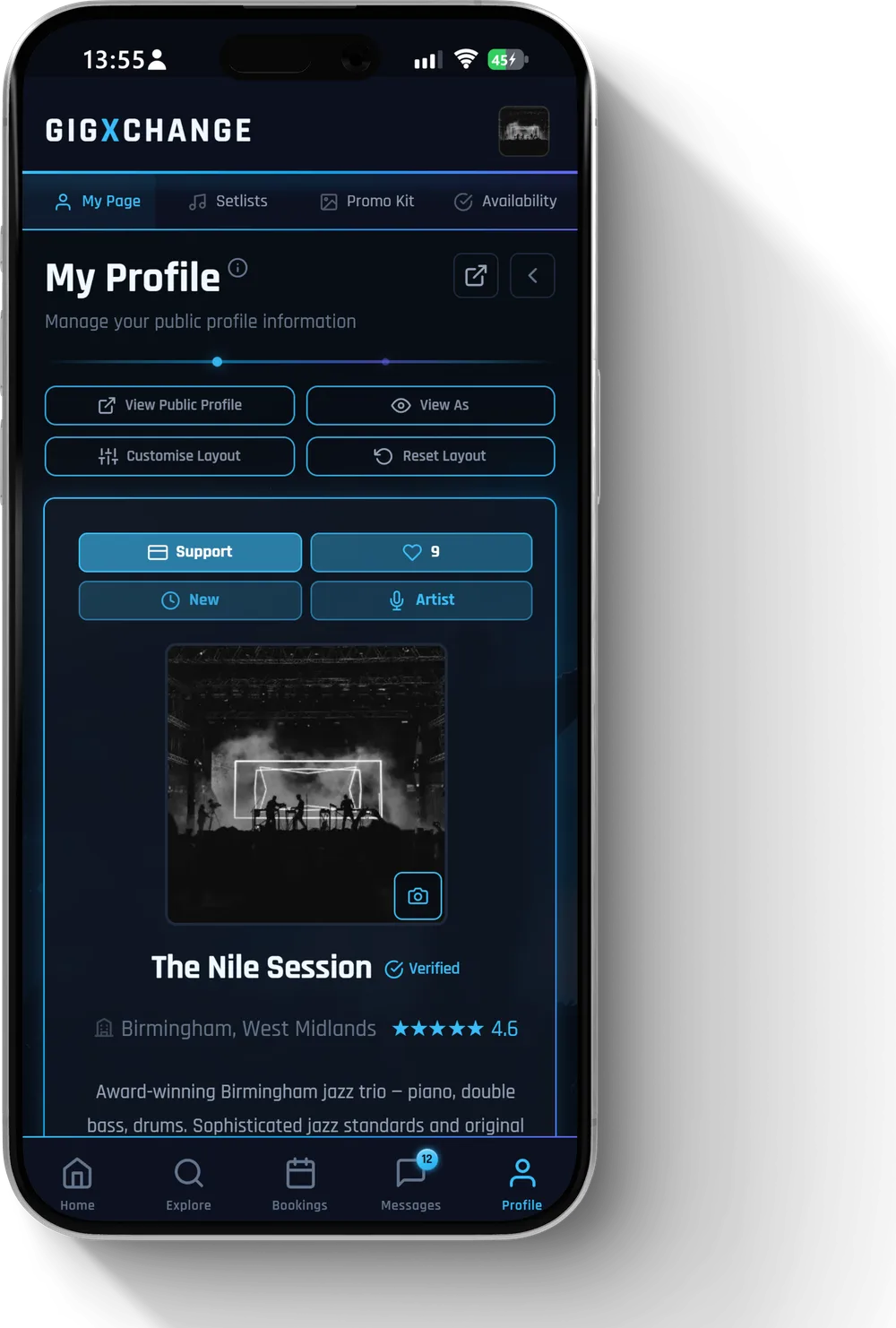 See it in the app Your profile — bio, genres, fee range and media, all editable in place
 Open your profile and add media directly there — audio tracks, video links and photos.
For artists, this is the part bookers actually judge you on. A bio tells them what you play; a recording tells them how you sound. If you only do one thing to your profile, make it this.
A single 60-second live clip usually does more work than a polished studio track, because a venue is trying to picture you in their room on a Friday night.
For venues, photos of the actual space matter for the same reason — an artist wants to know the room, the stage and the setup before they say yes. While you are editing your profile you can also say what the room provides: on a venue account that is the Facilities section with PA Provided; on an artist account it is Equipment with PA System. Either way the answer shows on your public profile, in the details beside your fee and location.
See editing your profile for everything else on the page.
Read this answer on its own page
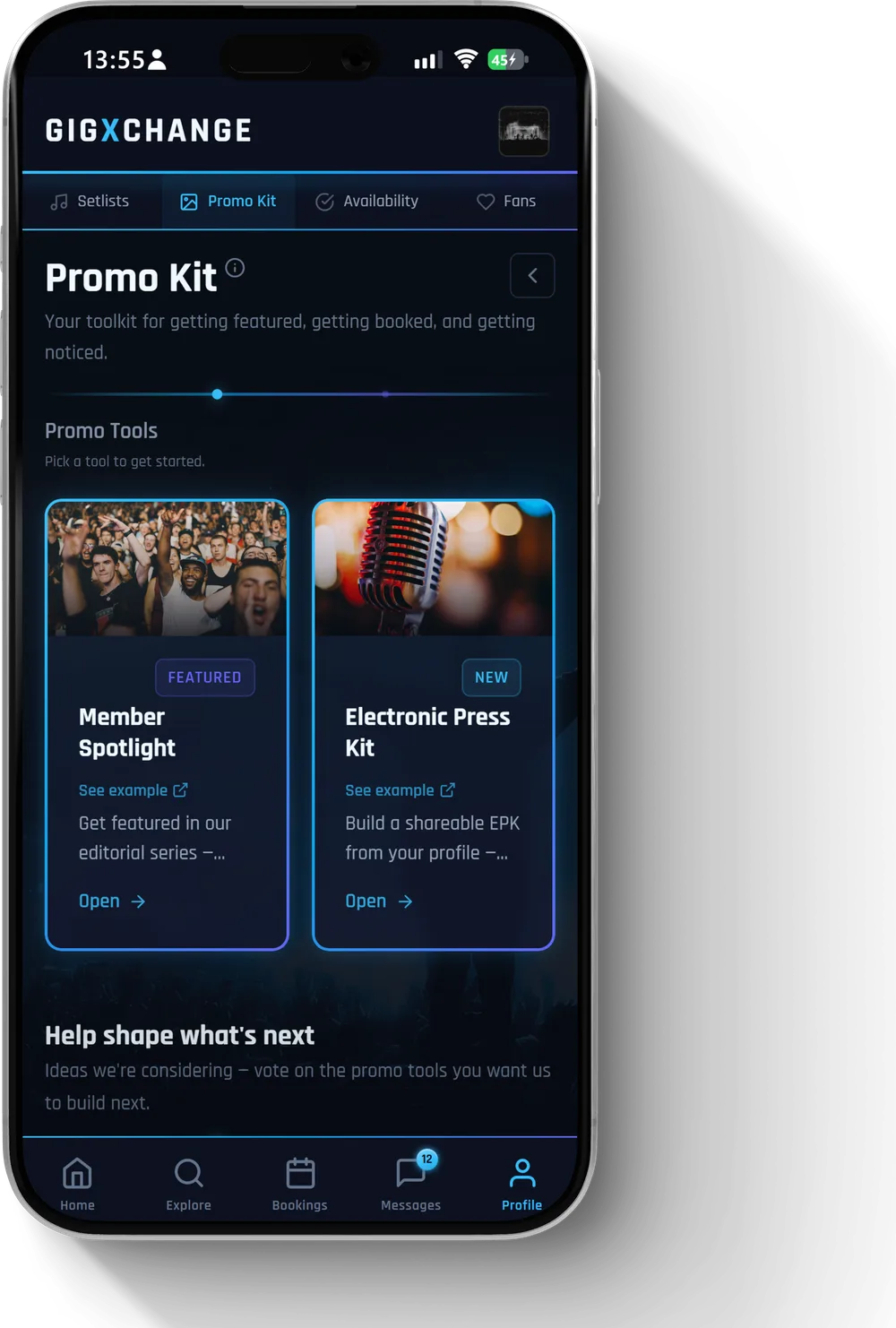 See it in the app Promo Kit — where your press kit, flyers and posters live
 Yes. Open Settings, choose Integrations, then the Calendar tab. It works in both directions.
Bringing your own calendar in: press Connect Google Calendar or Connect Outlook, sign in and approve, and you are done. Busy dates from your own calendar then block automatically on GigXchange, so nobody can book you on a day you are not free. Changes reach GigXchange within seconds, and we only ever read the dates you are busy — never event names, guests or locations.
Using Apple, iCloud or another calendar? Press Use a calendar link instead to open that section, choose the calendar type, paste your calendar's ICS feed address into Calendar feed URL, then press Connect by link — the feed address, not the page you view your calendar on. Link connections are checked hourly rather than instantly.
Sending your bookings out: Calendar Feed Export gives you a URL to subscribe to your GigXchange bookings from Google Calendar, Apple Calendar or any iCal-compatible app, so confirmed gigs appear in the diary you already use.
Everything you have connected is listed under Connected Calendars, where you can sync on demand or disconnect — disconnecting removes the connection, the dates it imported, and our access to your calendar.
Blocked dates feed straight into your availability — see how does the availability calendar work?
Read this answer on its own page
Yes. If you already have a press kit as a PDF, you can upload it and it takes over your EPK link. Your GigXchange EPK stays exactly as it is underneath, so nothing is lost.
Open Profile, choose Promo Kit, then open the EPK Builder. Press the upload icon at the top right of the builder's header — it has no label on screen, but hovering it (or a screen reader) will say Import your own EPK. A dialog opens; press Choose file and pick your PDF.
From then on, visitors to your EPK link see your uploaded file instead of the GigXchange page — every page of it, with chevron icons to turn the pages (they have no words on them; hovering says Previous page and Next page), an Open button for a full-screen read, and a Download button so they can keep a copy. The builder tells you which file is live and reminds you that your GigXchange EPK is saved underneath.
To change your mind, press the same upload button. The dialog now says Your uploaded EPK is live and offers two choices: Replace file to swap in a newer PDF, or Use GigXchange EPK to switch back to the page you built here. Switching back is instant, and you can switch again later.
For building the GigXchange version itself, see adding media to your profile.
Read this answer on its own page
Comments sit with a member's music. On a profile that has tracks, the Tracks section has a Comments button on the right; press it and the thread slides over the player, newest first. Press it again (it now reads "Back to tracks") to return to the music. A profile with no tracks has no comments.
Posting. You need to be signed in - if you are not, the thread shows Sign in to join the conversation instead of a box. Type in the box at the bottom and press Enter, or the send arrow beside it (its name is Post comment). Shift+Enter starts a new line. Comments are public: anyone looking at the profile can read them.
Removing your own comment. Your comments carry a bin icon - press it and confirm Delete. A deleted comment cannot be brought back.
On your own public page - open Profile and press View public at the top - you can look after the whole thread. Every comment shows two icons:
If you post too many comments in a short time, you are asked to wait a moment before posting again. If comments are switched off across GigXchange, the thread tells you so rather than failing quietly.
Comments are not reviews. A review is left after a completed booking - see how do I leave a review?
Read this answer on its own page
A Member Spotlight is a written feature about you, published on gigxchange.app. You answer questions about how you work; our editorial team writes the story from your answers. It is free for members.
Open Profile, choose Promo Kit, then press Open on Member Spotlight. The questions are tailored to your account type - an artist is asked about their sound, a venue about its room.
You do not have to finish in one go: Save draft keeps your answers and photos, and the Promo Kit tile then says Continue.
After you submit, the Member Spotlight tile on your Promo Kit shows where it stands - submitted, under review, approved or live - and you get a notification when it goes live. Once it is published, View yours opens it. Not every submission is published: if yours is not selected, the tile says so and you can submit again.
Your feature also draws on your profile, so make sure that is up to date first - see how do I edit my profile?
Read this answer on its own page
Fans is your own mailing list, kept in your account. Open Profile and choose Fans.
People add themselves. Anyone looking at your public profile can press the fan count near the top — the pill that reads "9 fans" — which opens a short form; they give their name and email, press Become a Fan, and they land on your list — so sharing your profile link is the main way it grows. Until someone does, the page tells you the list is empty rather than showing you nothing.
Fans are not the same as followers. Someone following you on GigXchange is not added to this list - only people who press the fan count and give their email - or people you import - are. See how do I follow someone?
Already have a list somewhere else? Press Import a list and upload a file with a Name and an Email column. There is a template to download if you want the right shape, and anyone already on your list is skipped rather than added twice. Before it imports you see exactly which rows will go in and which are being left out, and why.
You can search the list, and tick anyone you want to take off it. Export CSV gives you the whole list back as a file, so it is yours to take with you.
To write to the people on it, see how do I send an update to my fans?
Read this answer on its own page
Open Profile and choose Setlists. Setlists are for artist accounts only. If you cannot see the page, it may be switched off — turn it back on in Settings, under Add-ons.
Your Song Bank. This is your master list of songs. Reach it with the book icon at the top right of the page header — it has no words on it, but hovering it says Song Bank. Type a title under Add a song, or bring a spreadsheet in with Import songs. Tick the songs you want and press Create setlist to open the Create Setlist box: give it a Setlist Name, choose Default or Public if you want them, and press Create Setlist.
Building one. Back on the setlist page, the plus icon beside the setlist picker starts a New setlist. Press Edit your setlist to open its settings. Add songs in the box under the songs, split the night with + Add set and + Add encore, and drag the dotted handle on the left of a song (hovering says Drag to reorder) to move it. Default setlist is the one your profile shows first.
Sharing it. Press the upload arrow icon in the page header (hovering says Publish setlist). The Publish to your profile box offers Publish poster or Publish Interactive; publishing replaces the previous version and also switches the setlist to Public. Once it is published, View public page (in the setlist settings card) opens its own link. The envelope icon (hovering says Email) sends setlists to any email address, and Copy embed code puts a published setlist on your own website.
Read this answer on its own page
Following keeps a member you rate close to hand. You need to be signed in, and you cannot follow yourself.
To follow someone, open their profile and press Follow beside the other actions - it changes to Following, with the heart filled in. On a card in Explore, hover the card and press the heart icon (hovering it says Follow). Press either again to unfollow.
Where they appear. Everyone you follow is added to Favourites, under Explore, automatically - see how do I keep a shortlist of acts or venues? You can unfollow from there too.
Your Dashboard shows a Following count and a Followers count - press either to see the people in it.
Following is not the same as being a fan. A follow is one member keeping track of another, and it needs an account. A fan is anyone - account or not - who gives you their name and email to join your mailing list. Following someone does not put you on their mailing list. For the mailing list, see how do I build a mailing list of my fans?
On an organiser account there is no Dashboard, but Favourites and the Follow button work the same way.
Read this answer on its own page
Your EPK (electronic press kit) is a one-page press kit with its own link, built from your profile. Open Profile, choose Promo Kit, then press Open on Electronic Press Kit to reach the EPK Builder. Organiser accounts do not have the Promo Kit.
The first time, you see a finished example. Press Start yours now to begin your own.
Building it. Press Start from recommended layout for a ready-made page, or Add your first row to start from scratch. Each row holds sections — press Add widget to choose one, such as music, photos, reviews or your fees. Add row sits between rows to add more. Each row's bar has three small icon buttons on the right, with no words on them: up and down chevrons (hovering says Move up and Move down) and a cross (Remove row). Press Switch to preview to see the page as a visitor will, and Back to editing to return.
Publishing. Under Publish, press Publish EPK. The button stays greyed out until your EPK is at least 30% complete — the panel tells you when it is not there yet. Once live, the panel shows your link with a copy button, plus View EPK, Share, Update EPK and Unpublish. Your changes save as you go (the builder shows Saved), but visitors only see them after you press Update EPK.
On your own website. Once your EPK is published, the box headed Bring your EPK to your website — only you see it — gives you Copy embed code and Preview embed. Paste the code into a Custom HTML or Embed block in your website editor.
Already have a PDF press kit? See using your own EPK file.
Read this answer on its own page
Open Roster from the Profile menu. It is there on agent and promoter accounts. If it is missing from your menu, switch it back on in Settings under Add-ons.
Adding an artist. Press Invite an artist. On the Search GigXchange tab, type at least two letters of their name and press Invite beside them. If they are not a member yet, choose Invite by Email, enter their email address (their name is optional) and press Send Invite. They get an email invitation; if that address already belongs to a member, they get an in-app invite instead.
An invite is a request, and the artist decides. They show as Pending until they accept, and nothing is shared until they do. Once they accept they show as Active. On an agent account they also appear on your public profile.
Working with an artist. Select an artist to bring them into focus. Three figures sit on their card: Booked by you (the bookings you have made for them), Commission (the commission recorded on those bookings once they are completed) and Next gig. Under the figures, Book on behalf starts a booking for an active artist, Message opens a chat with them and Send EPK opens their press kit.
Each artist's tile also carries small icon buttons with no words on them: an eye opens their profile; on an active artist, a calendar books on their behalf; a cross removes them from your roster. You can invite someone you removed again later.
On an agent account, your usual rate is the Commission (%) field when you edit your profile.
Read this answer on its own page
Open Profile and choose Reviews. Every review you have received is listed there, with your overall score and how many still need a reply.
Replying. Pick a review, press Respond, write your reply and press Send response. Each review takes one reply, and it shows under the review. Reviews brought in from past clients have no Respond option.
Adding a review from a past client. Press the plus icon at the top right of the page - it has no label on screen, but hovering it says Import external review. In Import an external review, fill in Client name, a Rating and what they said. Then give at least one of these:
Press Add review. It goes live straight away, marked as from a past client rather than a booking.
Getting it confirmed. If you gave an email, the review reads Pending verification until your client answers. They open the link, see the review and choose Yes, this is accurate - it then shows as Client verified - or This isn't right, which takes the review down. They do not need an account. If they have not answered, press Re-send under the review.
You can Edit or Delete a review you added yourself; Delete asks you to Confirm delete first. Reviews from completed bookings work differently - see how do I leave a review?
Read this answer on its own page
Open Profile, choose Fans, and press Send an update — it appears once you have at least one fan. That opens Compose Update.
Start by choosing who gets it: All fans, or Pick individually to choose from your list by name. The recipient count sits next to the send button so you always know how many people you are about to write to.
Then write a Subject and a Message. Keep it personal — these are people who chose to hear from you, not a cold list.
You can attach things to the email rather than describing them. Upcoming events appear as their own row, and picking one puts the show, its date and its cover image into the message. You can also attach a flyer or a setlist if you have made one — those are the choices; there is no way to attach a photo from your profile. A Live preview on the right shows the email as your fan will receive it, updating as you type, so nothing goes out looking different from what you expected.
You can send one update every 24 hours. If you try again sooner, GigXchange tells you how long is left rather than sending it.
To grow the list first, see how do I build a mailing list of my fans?
Read this answer on its own page
GigXchange can give you a small availability calendar to put on your own website. It shows your live dates and sends visitors to your GigXchange profile to book you, so it stays current without you touching your site again.
On your site the widget shows the dates you have set, with a "Book ... now" link under it carrying your name. A visitor who picks a date, or presses that link, lands on your GigXchange profile - nobody books inside the widget itself.
Linktree and Instagram bios do not allow embeds, so share your profile link there instead.
The widget reads the same calendar you keep on GigXchange, so the dates are only as good as that calendar - see how does the availability calendar work? If the widget is ever switched off on our side, your site shows a plain link to book you on GigXchange instead of a broken box.
Read this answer on its own page
Go to Profile and open Availability. Each day shows 1 of 4 statuses:
Clicking a day does not open a menu: each click moves that day on to the next of Available, Unavailable and Soft Hold, so keep clicking until it reads the one you want. Booked is not one of the clicks: days taken by a GigXchange booking are set for you and cannot be clicked.
Use Edit pattern for a recurring schedule, so you are not clicking every Friday individually — it can repeat every week, or on a 1, 2, 3 or 4 week cycle with its own hours per week.
You can also sync with Google Calendar, Outlook or any iCal feed from Settings > Integrations, so your GigXchange availability stays in step with the calendar you already use.
Keeping this current matters: bookers filter by who is free on their date, so an out-of-date calendar means either missed offers or offers you have to turn down.
Want these dates on your own website too? Press Embed on your website on this page - see how do I show my availability on my own website?
Read this answer on its own page
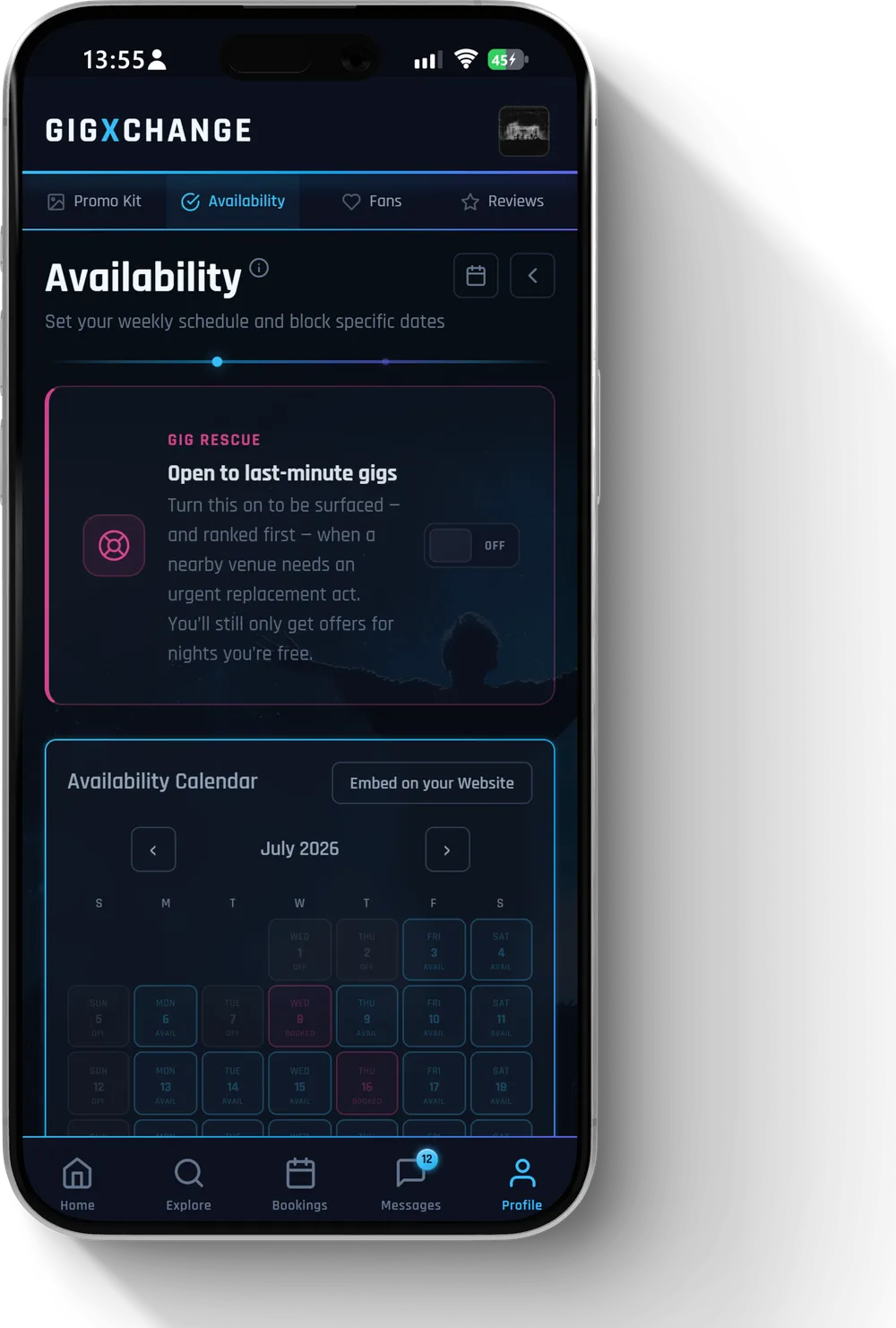 See it in the app The availability calendar — set each day Available, Off, Hold or Booked
 Fifty miles, until you say otherwise. Every artist account starts on 50, and your card says so — a line under your town reading "Travels up to 50 mi". A booker cannot tell the difference between the number you chose and the one you were given, so it is worth setting your own.
Open your own profile, go to the About section and press Edit. Travel Radius (miles) sits in the same block as your fee range and set length. Put in the distance you would genuinely go for an ordinary gig, then press Save. Your card picks up the new number straight away.
On the bigger feature card, the map draws faint rings every five miles out to fifty, so a booker can see at a glance how far their room is from you.
Be honest rather than generous. A booker who reads a big number, gets in touch, and then finds the fee will not cover the drive has had their time wasted — and so have you. A smaller, true radius gets you fewer enquiries you were always going to turn down.
This field is on artist accounts. Venues, agents and promoters do not have one.
To change anything else on your profile, see how do I edit my profile?
Read this answer on its own page
Yes. Your profile page is publicly visible, so potential bookers can find you without needing an account of their own. That is the point — it is how you get discovered.
Public: your display name, bio, photos, media, genres, location and reviews.
Never public: your email address, your private messages, and your booking and payment details.
So you can share your profile link anywhere — social media, an email signature, a poster QR code — and it works as your public page.
If you would rather not be listed at all, the way to do that is to delete your account; there is no half-visible state.
Read this answer on its own page
Insights shows how your profile is doing. Open it from the menu: Dashboard, then Insights. Organiser accounts do not have it.
The page has four parts, and the row of links at the top jumps to each one:
Next to many headings you will see a line such as "+20% vs avg of 12" or "on par with avg of 12". That compares your figure with the average, so you can tell whether a number is good or just big. A figure with no average beside it simply has nothing to compare against yet.
The numbers are a nudge, not a verdict. Keeping your availability up to date, replying quickly and completing your profile are the three things that move most of them - see editing your profile and setting your availability.
Read this answer on its own page
Reliability shows how an artist has kept their confirmed bookings on GigXchange over the last 12 months. It appears on artist profiles only.
To see it, open the artist's profile and find the Reviews section. Press Reliability at the top of that section; the reviews are replaced by the artist's track record. Press Back to reviews to return.
It shows one of four things:
Only bookings confirmed on GigXchange count, and cancellations recorded as not the artist's fault are not counted against them. Bookings arranged elsewhere do not appear.
If you are an artist, your own Reliability is built the same way: honour the bookings you confirm, and sort out a clash with the other side early rather than cancel late. See cancelling a booking.
Reviews and Reliability answer different questions: what people said about working with the artist, and their record of cancellations. See leaving a review.
Read this answer on its own page
The Verified badge means the member has confirmed the email address on their account and signed in.
You will see it in three places:
There is nothing to apply for: it appears the first time you sign in after confirming your email, and you get a Profile Verified notification.
Reviews use the word too, and it means something different there. A review's own GX verified or Client verified mark says where that one review came from, not whether the member is verified — see leaving a review.
Read this answer on its own page
Every venue page carries its city's league table: the rooms in that city with the most gigs on the calendar for the next 30 days, with the venue you are looking at marked as This venue. Each row shows the gig count, and an arrow for movement against roughly a week ago.
It counts one thing and nothing else: gigs listed in the next 30 days. Not how long you have been on GigXchange, not whether you have an account, not anything you can pay for. A busy room with nothing listed will sit below a quieter one that lists everything.
So if your venue is missing, or lower than you expect, there are only two things to check:
The table rebuilds every night, so a gig added today counts tomorrow.
If the city has no gigs listed for the next 30 days at all, there is no table — the page says so, and the first venue to list one starts it.
Not yet listed as a venue? See how do I claim my venue's page?
Read this answer on its own page
Press Your Links on your dashboard, next to My activity. It opens one window holding everything you have made that can be shared.
Along the top is a tile for each kind of page. Which tiles you see depends on your account:
Pick a tile and a live preview of that page appears, with its link beside it. If you have several of one kind, such as three flyers, pick the one you want from the row of thumbnails underneath.
When a page is live you get four buttons:
If a page shows Not public yet or Not made yet, the button underneath takes you to the place to finish it - for example Publish this flyer, Share this plot or Publish your EPK. Once it is published, its link appears here ready to share.
If you manage a band or venue page, Your Links shows the links for the page you are currently acting for. Flyers only appear for your own account.
Read this answer on its own page
Use your Instagram Microsite. It is a free one-page site for the single link Instagram gives you, built from your GigXchange profile - your music, free dates, photos, videos, links and reviews, with a button to book you - so it is ready before you change anything.
Open Promo Kit from the Profile menu and press Open on the Instagram Microsite card.
There is no Save button: every change saves itself, and the top of the card says Saved. The preview is your real page. On a phone, switch between Edit and Preview; View full screen shows it larger.
Your social links come from your profile - Edit your links on your profile takes you there. New photos, tracks and free dates on your profile appear on your microsite without you doing anything.
Read this answer on its own page
Finish three things on your profile and your act joins the GX Arena line-up automatically: a profile photo, at least three gallery photos, and at least one song you host on GigXchange.
GX Arena is a live 3D venue on GigXchange where acts play one after another. Your photos go up on the screens and your top song plays on the sound system, so venues, agents and promoters can hear you properly before they get in touch. It is free, and nobody picks acts by hand.
To get on stage:
That is all. Once all three are in place you are in the line-up, and bookers can save you, message you or send you an offer straight from the stage.
GX Arena is in beta and runs on a desktop or laptop. On a phone, bookers still reach your songs and photos through your public profile.
Read this answer on its own page
From first offer to a confirmed date, and what happens if plans change.
A booking starts with an offer. Browse profiles or post a gig, and when you find a match, send a booking offer with your proposed date, fee and details.
The other party can Accept, Decline or Amend (send back a counter-offer). You can go back and forth until the terms are right — it all happens in the chat, so the conversation and the offer stay in one place.
Once both sides agree, a contract is generated for both parties. Both of you need to sign it within 7 days of payment — if you don't, the booking expires and everything paid is refunded.
The booking is Confirmed once both signatures are in — that is when it appears on both calendars. Between the deposit being paid and the last signature it stays under Accepted.
From there you choose how to settle: privately, or through GigXchange with the money held securely. See paying privately or through GigXchange.
Not sure what to offer? The rate calculator gives typical UK fees for the kind of gig you are booking.
Read this answer on its own page
When someone sends you a booking offer it arrives as an offer card in your Messages, and it also appears in your Bookings under Pending.
On the card you can:
Countering is normal and expected — most bookings settle within 2 rounds on the fee. Because it all happens in the chat, the negotiation stays attached to the booking rather than scattered across texts and emails.
Offers stay open until the gig date — if the gig day passes with nobody responding, the offer expires. Ask whatever you need to in the chat, but answer the card itself before the day of the gig — an expired offer has to be sent again from scratch.
Read this answer on its own page
Every booking lives in Bookings, with filters for each stage.
If it was paid through GigXchange, the money is released 5 days after the gig date — see when do I get paid?.
Totals sit at the top of the Bookings screen, so you can see what is coming up and what is outstanding at a glance.
Read this answer on its own page
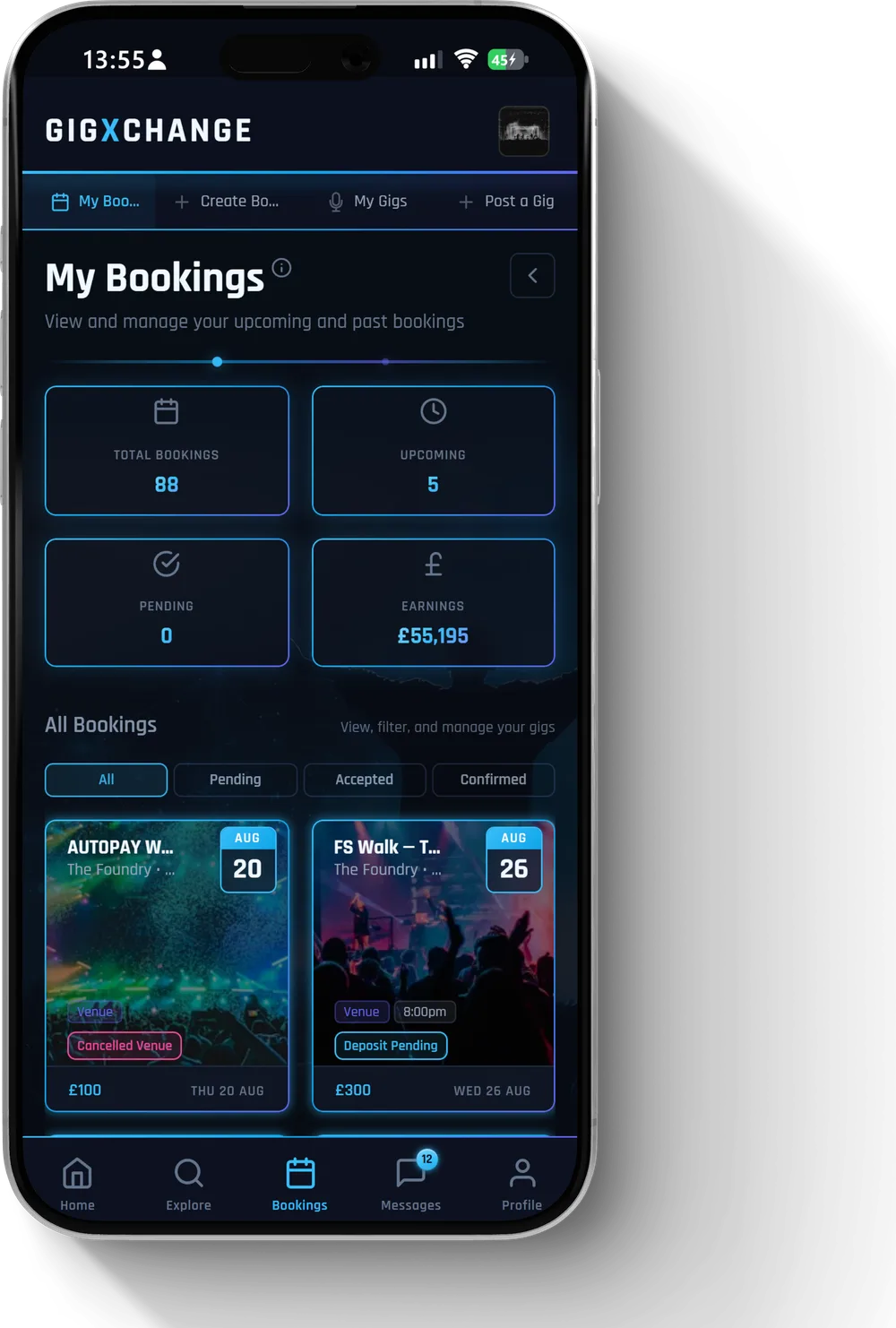 See it in the app Your bookings, filtered by stage, with totals at the top
 Use Gig Rescue. It is on venue and promoter accounts: open Bookings and choose Gig Rescue. It is switched on for venues; a promoter switches it on first - press Switch Gig Rescue on on that page, or turn on the Gig Rescue switch in Settings.
Pick Booked on GigXchange to choose one of your upcoming bookings, or Booked outside GigXchange to set the night yourself, with an optional Fee per act and genre. A promoter also types the Town or city of the gig - nothing is sent without it. Press Continue, then Broadcast.
GigXchange sends an urgent offer to up to 25 acts who are free that night near the gig and take last-minute gigs (acts switch that on or off on their Availability page, under Open to last-minute gigs). Each invite expires after 72 hours. The first act to accept fills the slot, and the other invites close automatically. You are notified when someone says yes.
Each rescue can also have a public page to share. Before you can share it, your profile needs a photo, your town, a bio and a link. Press Copy link or Share on WhatsApp and post it in your musician groups. Anyone can open it and press Apply for this gig without an account. Their applications appear on your Gig Rescue page with their email - reply to them directly. When the applicant is a GigXchange member, Accept & book opens a pre-filled booking for you to check and send. Once the night is covered, press Mark as filled and the public page shows it as filled.
Rescue status shows where each invited act stands. If nobody has said yes yet, Widen the search takes the offer further - a venue's goes across its whole region straight away; a promoter confirms the town again and presses Broadcast to send it anywhere - and Raise the fee lets you set a higher fee and broadcast again.
How the booking itself works from there: how do bookings work?
Read this answer on its own page
Yes. The venue directory lists venues across the UK, including many that have not joined GigXchange yet. Where a venue's card shows a Contact button, you can introduce yourself even though they are not a member.
Open Find Venues from Explore and find the venue. Contact only appears on venues that have not joined yet and that we hold contact details for — most cards in the list are members already, so you will not see it on all of them. Where it is there, choose Contact. Write a personal note under Your message — who you are, what you play, why you would suit their room — then Send message.
We pass your note to the venue by email, along with a link to your profile, and it is free for the venue to join and reply. If they do join, you will be notified.
A personal note is required, and there is a daily limit on how many venues you can contact — so make each one count. A specific, genuine message about their venue lands far better than a copy-paste.
Venues that are already members do not need this route — you simply message them directly or send a booking offer.
Read this answer on its own page
GigXchange has a Martyn's Law Readiness tool that answers this for your venue. It is on venue accounts only: open Bookings, choose Compliance, then press the shield icon at the top right of the page header - it has no words on screen; hovering it says Martyn's Law Readiness.
Answer the Six quick questions: how many people can be present at once, what you run, whether you control the premises, whether you have written emergency procedures, whether you employ staff and whether you host public events.
Your tier then tells you whether the law applies and which tier you fall into, with a link to the official guidance. If duties apply, each one is listed with why it matters and an official link. Tick each duty as you put it in place, and Your readiness shows how many are done.
When your venue is in scope, a Procedures draft section appears. Fill in five short answers - who leads if something happens, evacuation routes, the safest place inside, how staff alert each other and where responders find keys and plans - then press Generate the draft (PDF) and then Download. Anything left blank becomes a prompt in the document, so you can also print it and fill it in by hand.
To download your results, press the download-arrow icon in the page header (hovering it says Export), choose Readiness summary or Procedures draft, and press Download. Completed answers save to your account automatically. Start over begins a fresh set; your saved answers stay until you complete the new one.
This is guidance, not legal or security advice. Check your duties against the statutory guidance and ProtectUK, both linked on the page.
Read this answer on its own page
Use the Licence Checker, a tool for venue accounts. Open Bookings and choose Licence Checker.
It asks up to ten questions, one at a time: where your venue is, what kind of music you have, how many people attend, how often, and a few more that only appear when your earlier answers make them relevant. Your answers build into a sentence at the top - tap any part of it to change that answer, or press Start again.
Once every question is answered, your verdict appears in two parts:
Each part is marked All clear, Action needed, Check required or Likely exempt, with a link to the official page. Where it applies, you also see an estimated cost and a link to get an exact quote. Your action plan lists the steps to take, each linked to its official source.
If you may need a Temporary Event Notice, the TEN deadline planner appears: pick the night of your event and it shows the last day to file, and GigXchange reminds you a week before. Under Your licensing authority, enter your venue's postcode and press Find (or Update, once a council is saved) to see which council handles your licensing.
Your answers save to your venue. To keep a copy, press the download-arrow icon at the top right of the page header - it has no words on screen; hovering it says Export PDF.
The checker is guidance, not legal advice. Confirm your exact position with your licensing authority, gov.uk and PPL PRS.
Read this answer on its own page
Open Explore and choose Venues. The page lists every venue on GigXchange, and you can narrow it down with the search below the masthead - on a phone, tap the row under Search venues to open the filters.
At the top, Recently Active shows venues that have been on GigXchange lately.
Under Search venues, filter by name, city, venue type, capacity and budget, and use Available On for the date you want to play. Advanced opens the full filter panel - see How do I narrow down a search for an act or a venue? - and Clear resets every filter. Open a venue's profile to see its type, capacity and budget, and to message or book it.
Venues that are not on GigXchange yet appear in the list too, marked Unclaimed. Tap one to open its page. Vote for the ones you would like to play: your vote tells us which venues members want, so we can invite them. Claiming a venue's page needs a venue account - see How do I claim my venue's page?. Know someone at a venue? Press the house icon at the top right of the page (hovering it says Invite a venue) to send them an invite.
To ask a venue that is not on GigXchange about a gig, see Can I contact a venue that isn't on GigXchange yet?.
Read this answer on its own page
Go to Explore and choose Find Gigs. From there you can filter by genre, city, date and budget to narrow it down to gigs you would actually want.
Find Gigs shows open mics as well as posted gigs. Use the tabs above the list: All, Open gigs or Open mics. An open mic card says "Open mic · just turn up" and the night it runs.
Open mics work differently from gigs. There is nothing to apply for and no pay: you turn up on the night and put your name down to play. Press an open mic card (or View open mic on the large card at the top) for the start time, the entry fee if there is one, the kit the venue provides, and other open mics nearby.
The genre, city and date filters apply to open mics too; setting a budget hides them, because open mics are unpaid.
You can also browse the public gig directory, which is open to everyone and does not need an account.
Two things help gigs find you as well: keeping your availability calendar up to date, and keeping your profile complete. Bookers filter on both.
See setting your availability and editing your profile.
Read this answer on its own page
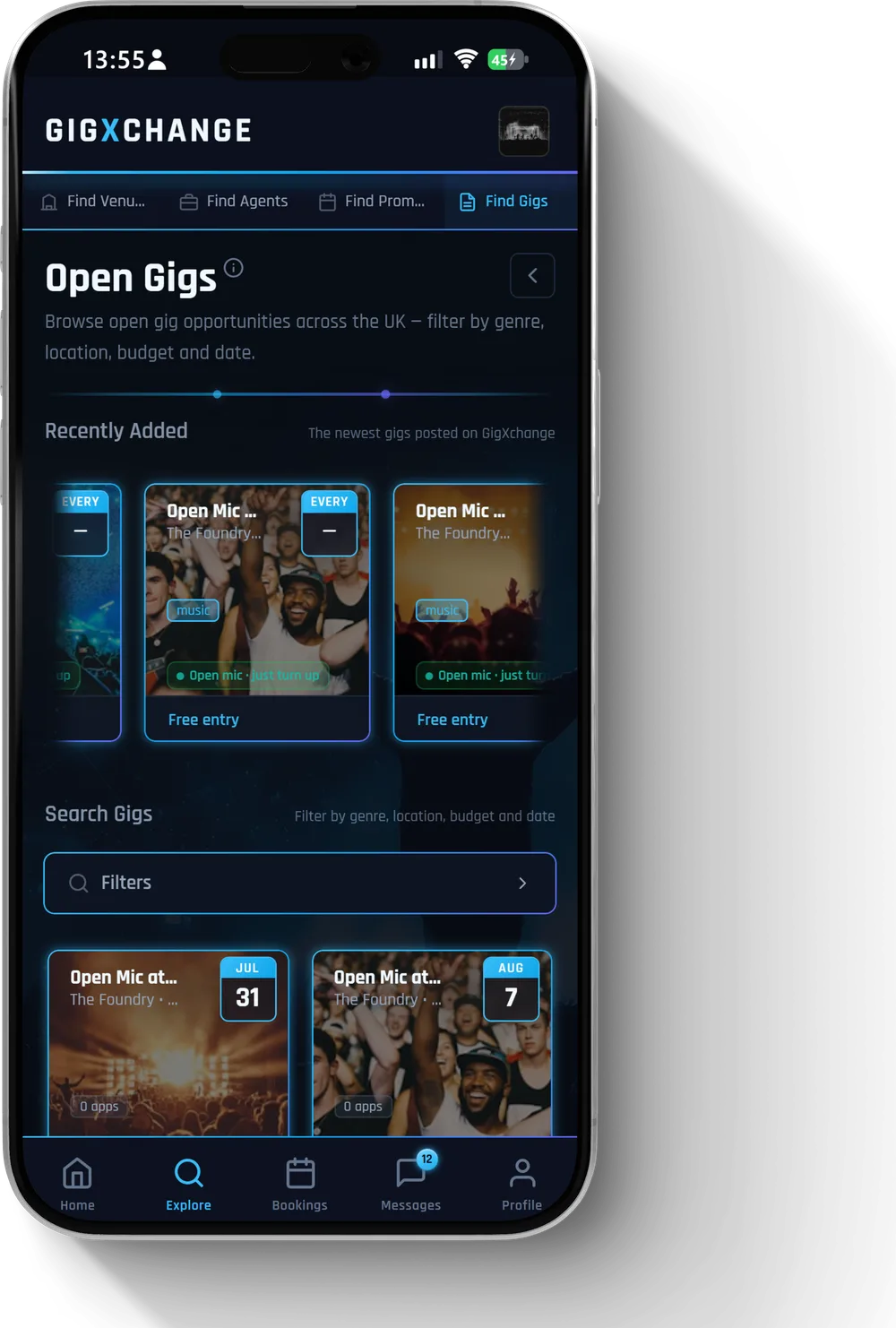 See it in the app Find Gigs — filter by genre, city, date and budget
 Use Classifieds — the noticeboard where artists find each other, fill openings, and get found.
It is switched off by default. To turn it on, open Settings, choose Add-ons, and switch on Classifieds — it then appears in your Explore menu.
On the board you can browse ads from other artists, or post your own with Post an ad. An ad is one of two kinds:
Each ad carries the role, the commitment, the city and a short detail line, so you can tell at a glance whether it fits. Filter by role, city and kind to narrow the board down.
Replying to an ad starts an ordinary GigXchange chat with the poster — posters are real profiles, so you can check their media and reviews before you commit to anything.
Want the board to come to you? Set a Match alert — save a role and city once, and you will be notified when a new ad matches.
When a conversation turns into an actual gig, see how do bookings work?
Read this answer on its own page
Open Explore, then Favourites. It is your shortlist: everyone you follow is already on it, plus anyone you add yourself.
To add someone, type their name into the box under Add to your list (it reads Search people to add to favourites…) and pick them from the results.
The first person on your list is shown large, with their bio, genres, rating and where they are based. Press View profile to open their page, or Star to keep them on your list (it then reads Starred). Everyone else sits in the grid below; press a card to bring that person up top.
Each grid card has small round icon buttons with no words on them:
Under every card is that member's availability for the next few weeks, with a line such as "Free Sat 25 Oct" or "Fully booked this week". Tap a free night to start an offer for that date. From there it works like any offer: see how bookings work.
Read this answer on its own page
Once a booking is marked complete, both sides are invited to leave a review — a rating from 1 to 5 stars, plus written feedback.
Reviews appear on your public profile and count toward your average rating. They work both ways: artists review venues and promoters, and they review artists back.
This is how trust gets built on the platform. A new profile with no history is a risk to book; a profile with a run of solid reviews is not. It is worth leaving them, and worth asking for them.
Most reviews come from a completed booking on GigXchange, and those carry a GX verified badge. A profile can also carry reviews left without a booking, which carry no badge, and testimonials brought in from elsewhere, marked External (or Client verified where the client has been confirmed). So the badge, not its absence, is what tells you a review has a real booking behind it.
Read this answer on its own page
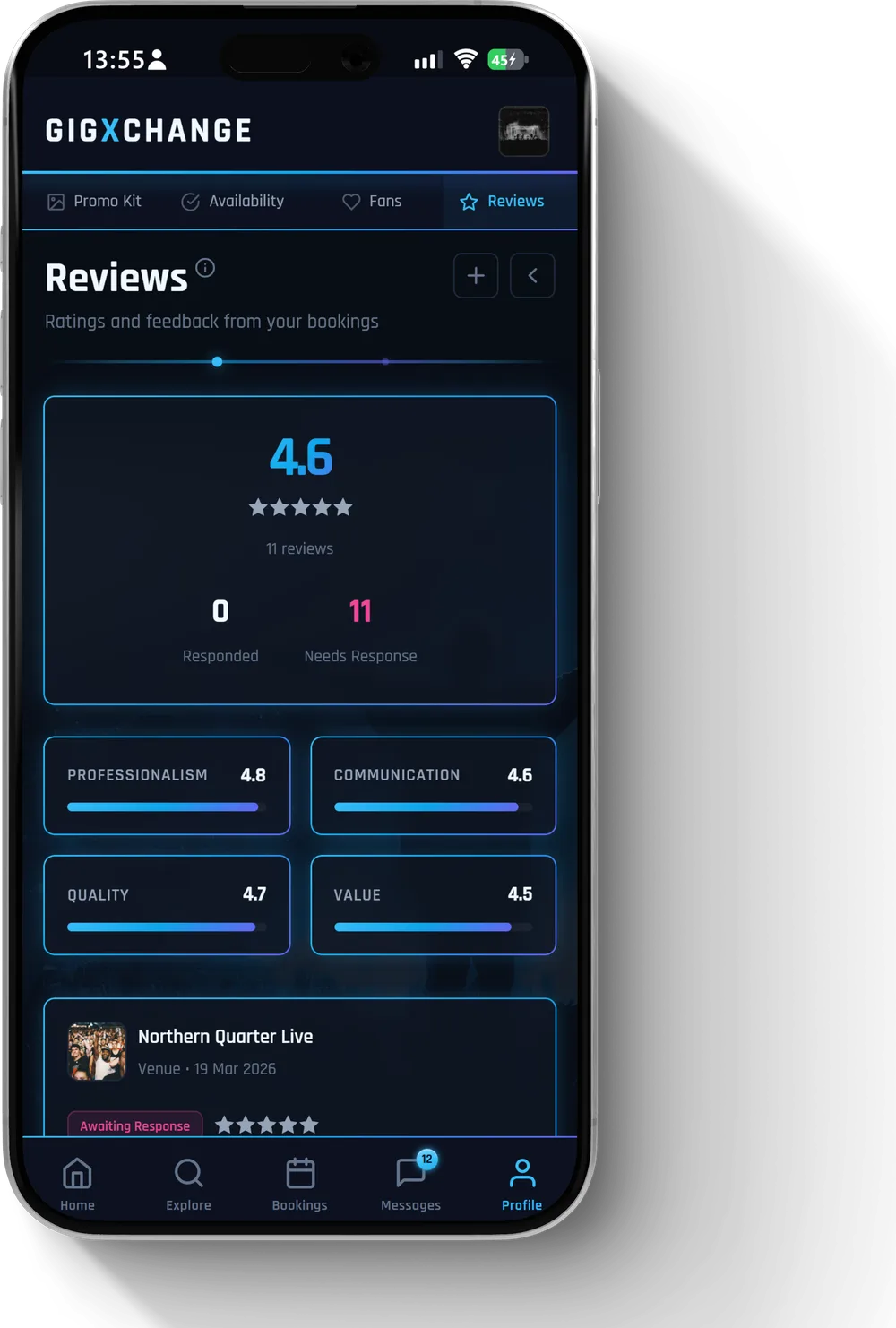 See it in the app Reviews on your profile, from real completed bookings
 Open Bookings and choose Flyers. (Organiser accounts do not have this page.) The Flyer Builder opens on two collections of designs: Editorial and Classic. Pick one and the builder opens with a sample flyer you edit in place.
Fill in Details — the headliner, venue, city, date, doors, prices, a ticket link and an optional QR code. Every place a detail appears on the flyer updates as you type. Look holds the format and the colours: Poster, Story or Social feed, three colour themes, and switches for the print effects.
Your images go in Photo & logo (some designs take several). On an Editorial flyer you can place your logo yourself: Logo size makes it bigger or smaller, and Logo left - right and Logo up - down move it anywhere on the flyer. Poster, Story and Social feed each keep their own position, and Reset logo puts it back where the design had it. (On Backline the logo changes size but stays in place.) Every flyer saves itself as you work, so nothing is lost if you step away; on an Editorial flyer Save draft forces it.
When it looks right, use Publish to finish:
A published flyer is a snapshot — later edits stay private until you update it, and Unpublish takes the page and the embed down again. On a computer, Open Desktop Editor puts the flyer and its settings side by side.
Saved flyers stay under My flyers on the Flyers page, ready to reopen and re-export.
Read this answer on its own page
Open Stage Plot from the Bookings menu. A stage plot shows a venue's sound engineer who stands where and what gear comes with them.
The page has four tabs:
To send it, press the download icon in the page header (hovering says Download) and pick Image, PDF rider or Print-friendly PDF — or send it in the chat. The PDF rider shows your stage from every angle, a crew plan with each channel and mix, the key, your lists and notes, and the live plot's QR code once it is published. See how does messaging work?.
Press Publish under the stage to give the plot a public page and an embed code. To take it down, open Share to a venue (the share icon in the header) and press Stop sharing.
Read this answer on its own page
Open Bookings and choose Upcoming. That page builds a poster of your upcoming dates and turns it into a public page on your profile. On an artist account it is a tour poster, on a venue account an events poster, and for agents and promoters simply a poster - the steps are the same.
Importing does more than fill the poster. In Import dates, Start Fresh downloads a blank template, and Upload CSV or Upload Excel File reads your own spreadsheet; a preview shows what was found before anything is saved. Future dates that have a venue are also added to your bookings - the preview tells you when that will happen. Deleting a poster deletes those bookings with it, and the confirmation says how many before you agree.
Once published, View public page opens it and Share gives you the link. Under the poster, Copy embed code puts the same page on your own website; it updates itself whenever you publish again.
You can keep more than one poster. Use Choose a poster to switch, the plus icon beside it (New poster) to start another, and the bin icon to delete the one you are on.
Read this answer on its own page
Each Explore search page has its own filters in the bar along the top — genre, city, fee, a date. When they are not enough, press Advanced next to them to open the full filter panel.
On top of the basics, the panel gives you:
Press Apply to run it, or Clear all to start again. The page tells you how many filters are on, so you can always see why a list looks short.
This is on Find Artists, Venues, Agents and Promoters. Organiser accounts have Find Artists, which is their browsing home; the other three are for artist, venue, agent and promoter accounts.
Found the act you want? Press Book on their card, or open their profile, scroll to Get in touch near the bottom and press Book, to send them an offer (organiser accounts are taken to a booking form instead). From there it works like any offer: see how bookings work.
Being findable works the same way in reverse — see I am not getting any replies or bookings.
Read this answer on its own page
Posting a gig is for the side doing the booking — venues, promoters and agents. If you are an artist you apply to gigs rather than post them; see finding gigs.
Go to Bookings and choose Post a Gig.
Add the date, time, genre preferences and fee range. Every listing has to say what it pays — if the gig is unpaid (expenses, exposure or charity), switch on This gig is unpaid instead of entering a budget. Artists in matching cities and genres will then see it in their feed and can apply.
A few things make a listing work harder: a realistic fee range, a clear genre, and enough detail about the room and the night that an artist can tell whether they fit. Vague listings get vague applicants.
If you are not sure what to offer, the rate calculator gives typical UK fees for the kind of gig and room size you are booking.
You can also browse the public gig directory to see what else is already listed in your area.
Read this answer on its own page
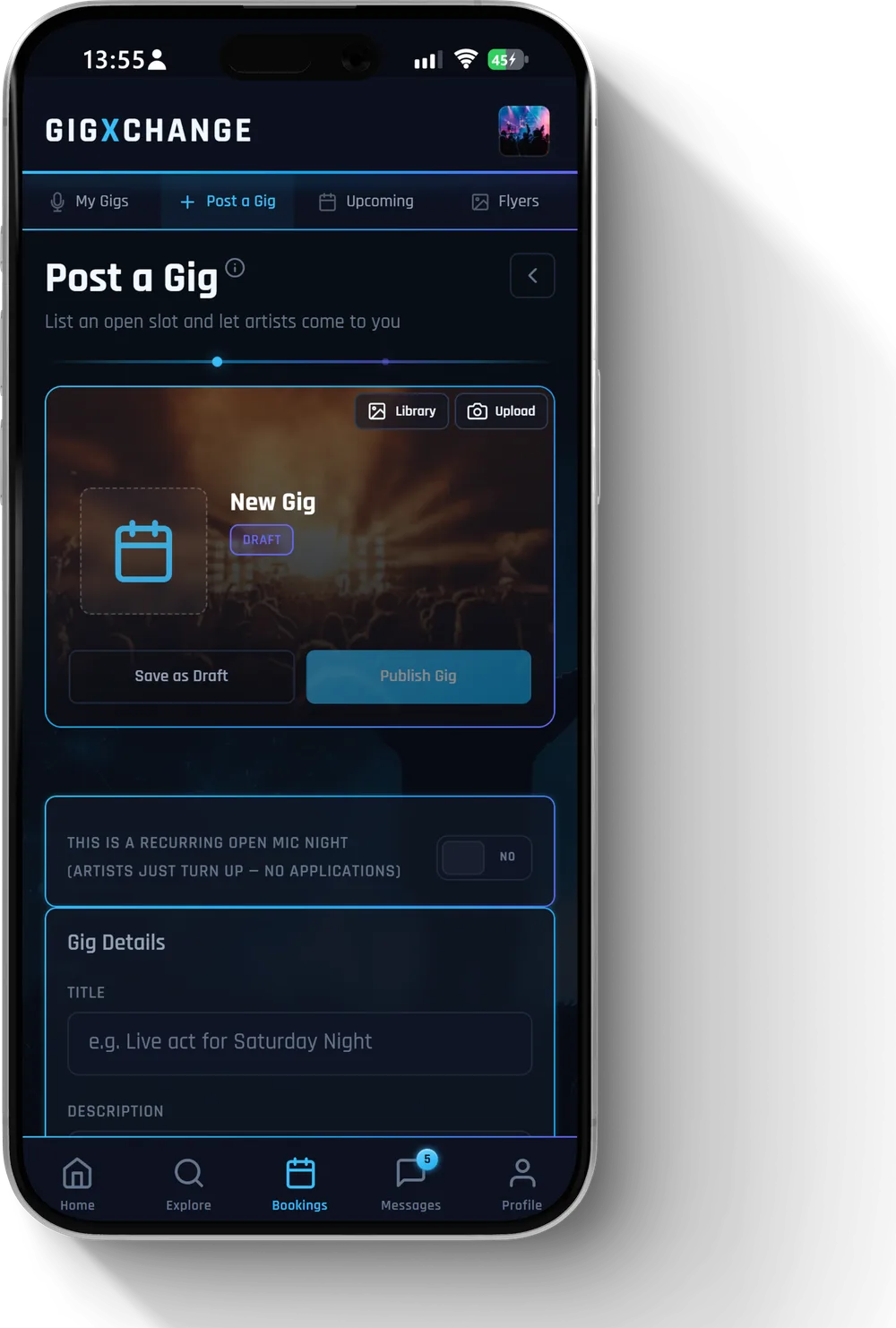 See it in the app Post a Gig — date, location, genre and fee range
 Your own ads live under My Ads on the Classifieds board — switch from Browse to My Ads at the top. An ad runs for 60 days, and each one shows its state: Live, Expired or Closed.
There is one exception, and it is the useful one. If your ad named a date — the gig you needed someone for, or the window you were free in — and that date has gone by, renewing on its own would put the ad back up invisible. So Renew opens the ad itself instead, keeps the old date on screen so you can see what needs changing, and asks you for a new one. Save it with Relist ad and the ad is live again for another 60 days, on the same link anyone you have already sent it to still has.
Relisting counts towards your live ads again. Simply editing an ad does not — it updates what readers see without restarting the 60 days.
To post an ad in the first place, see how do I find other musicians to play with?
Read this answer on its own page
Use the free gig rate calculator. It is built on the GX Index, our open dataset of real UK gig fees, refreshed nightly. No account is needed.
Switch the chart between Shape and Percentiles to see the spread. A Low sample mark means few fees are behind that answer, so treat it as a guide. If there is not enough data for your choice, widen it to any UK city or any event type.
The same calculator sits on the GX Index page, alongside the monthly reports and the methodology.
Add your own fee. Every anonymous answer sharpens the Index. Press Submit your rate on either page, or use the gig pay survey: press Add my gig, answer four short steps (the type of gig, how many of you played, where it was, and what you took home), then press See where I stand to see how your fee compares.
These are market figures to help you set a fee, not prices set by GigXchange. The fee on a booking is whatever you and the other side agree — see how do bookings work?.
Read this answer on its own page
Yes, on a venue account. Open Bookings and choose Compliance to open the Compliance Checklist.
Answer eight questions, one at a time: what you run, your maximum capacity, whether you sell alcohol, serve food, employ staff, control the premises, keep customer data and host live music or events. Then press See my checklist.
The checklist holds only what applies to your venue - fire safety, health and safety, licensing, insurance and the rest - grouped by category, with tabs along the top to read one category at a time. Each item says why it matters, how high a priority it is, and links to the official page that sorts it.
As you sort each one, press Mark done and it reads Done. On a ticked item that renews, press + Remind me to set a reminder a year ahead (press the date shown to change it), and GigXchange reminds you before it lapses. The summary at the top shows how complete you are, the Legal must-haves left and the Reminders set.
Everything saves to your account automatically. Reset ticks clears your ticks; Start over clears your answers too.
To print or file it, press the download-arrow icon at the top right of the page header - it has no words on screen; hovering it says Export. Choose Completed checklist (with your ticks) or Blank checklist (to fill in by hand), then press Download. The shield icon beside it opens Martyn's Law Readiness - see does Martyn's Law apply to my venue?
The checklist is guidance for UK venues, not legal advice. Confirm your exact obligations with your local authority and the official sources it links to.
Read this answer on its own page
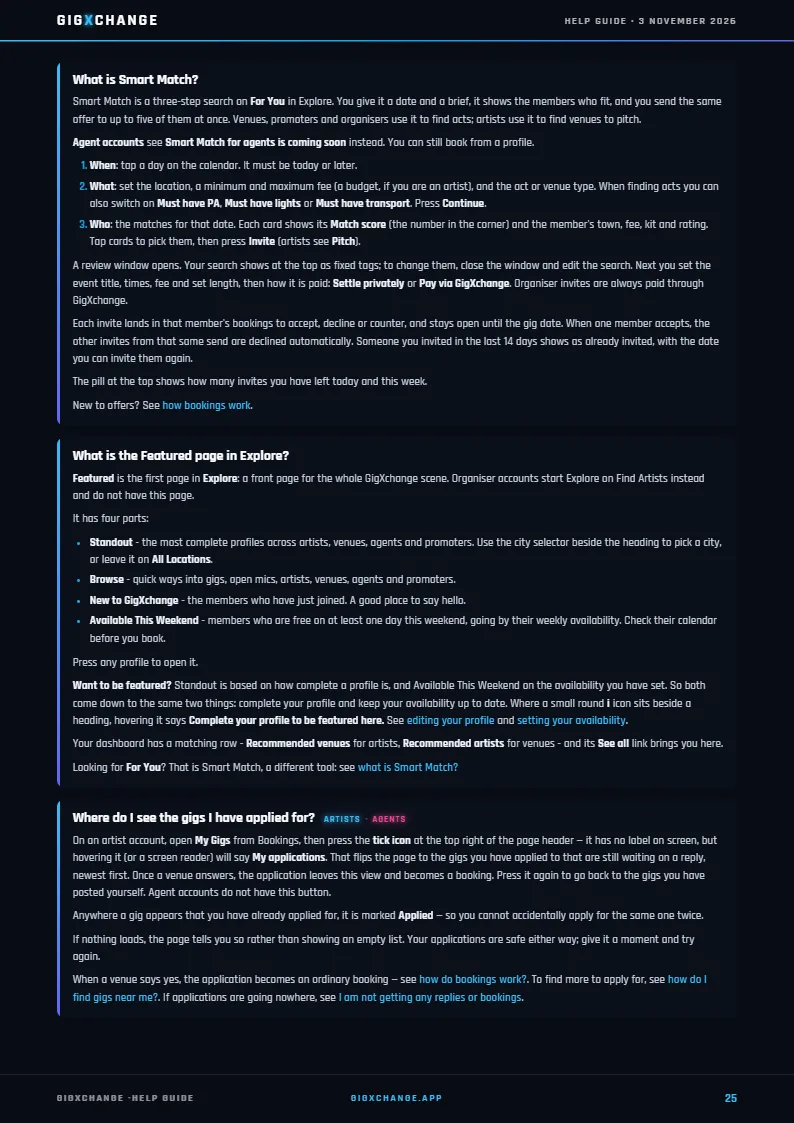
Smart Match is a three-step search on For You in Explore. You give it a date and a brief, it shows the members who fit, and you send the same offer to up to five of them at once. Venues, promoters and organisers use it to find acts; artists use it to find venues to pitch.
Agent accounts see Smart Match for agents is coming soon instead. You can still book from a profile.
A review window opens. Your search shows at the top as fixed tags; to change them, close the window and edit the search. Next you set the event title, times, fee and set length, then how it is paid: Settle privately or Pay via GigXchange. Organiser invites are always paid through GigXchange.
Each invite lands in that member's bookings to accept, decline or counter, and stays open until the gig date. When one member accepts, the other invites from that same send are declined automatically. Someone you invited in the last 14 days shows as already invited, with the date you can invite them again.
The pill at the top shows how many invites you have left today and this week.
New to offers? See how bookings work.
Read this answer on its own page
Featured is the first page in Explore: a front page for the whole GigXchange scene. Organiser accounts start Explore on Find Artists instead and do not have this page.
It has four parts:
Press any profile to open it.
Want to be featured? Standout is based on how complete a profile is, and Available This Weekend on the availability you have set. So both come down to the same two things: complete your profile and keep your availability up to date. Where a small round i icon sits beside a heading, hovering it says Complete your profile to be featured here. See editing your profile and setting your availability.
Your dashboard has a matching row - Recommended venues for artists, Recommended artists for venues - and its See all link brings you here.
Looking for For You? That is Smart Match, a different tool: see what is Smart Match?
Read this answer on its own page
On an artist account, open My Gigs from Bookings, then press the tick icon at the top right of the page header — it has no label on screen, but hovering it (or a screen reader) will say My applications. That flips the page to the gigs you have applied to that are still waiting on a reply, newest first. Once a venue answers, the application leaves this view and becomes a booking. Press it again to go back to the gigs you have posted yourself. Agent accounts do not have this button.
Anywhere a gig appears that you have already applied for, it is marked Applied — so you cannot accidentally apply for the same one twice.
If nothing loads, the page tells you so rather than showing an empty list. Your applications are safe either way; give it a moment and try again.
When a venue says yes, the application becomes an ordinary booking — see how do bookings work?. To find more to apply for, see how do I find gigs near me?. If applications are going nowhere, see I am not getting any replies or bookings.
Read this answer on its own page
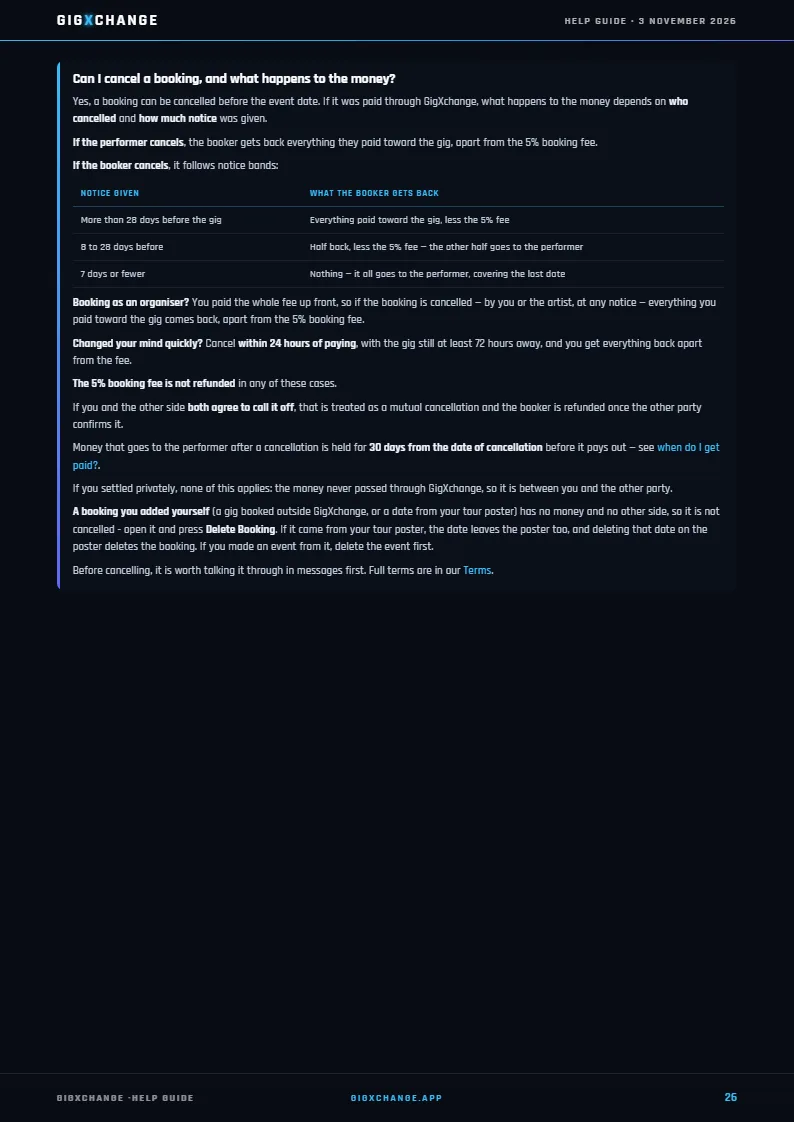
Yes, a booking can be cancelled before the event date. If it was paid through GigXchange, what happens to the money depends on who cancelled and how much notice was given.
If the performer cancels, the booker gets back everything they paid toward the gig, apart from the 5% booking fee.
If the booker cancels, it follows notice bands:
| Notice given | What the booker gets back |
|---|---|
| More than 28 days before the gig | Everything paid toward the gig, less the 5% fee |
| 8 to 28 days before | Half back, less the 5% fee — the other half goes to the performer |
| 7 days or fewer | Nothing — it all goes to the performer, covering the lost date |
Booking as an organiser? You paid the whole fee up front, so if the booking is cancelled — by you or the artist, at any notice — everything you paid toward the gig comes back, apart from the 5% booking fee.
Changed your mind quickly? Cancel within 24 hours of paying, with the gig still at least 72 hours away, and you get everything back apart from the fee.
The 5% booking fee is not refunded in any of these cases.
If you and the other side both agree to call it off, that is treated as a mutual cancellation and the booker is refunded once the other party confirms it.
Money that goes to the performer after a cancellation is held for 30 days from the date of cancellation before it pays out — see when do I get paid?.
If you settled privately, none of this applies: the money never passed through GigXchange, so it is between you and the other party.
A booking you added yourself (a gig booked outside GigXchange, or a date from your tour poster) has no money and no other side, so it is not cancelled - open it and press Delete Booking. If it came from your tour poster, the date leaves the poster too, and deleting that date on the poster deletes the booking. If you made an event from it, delete the event first.
Before cancelling, it is worth talking it through in messages first. Full terms are in our Terms.
Read this answer on its own page
How money is held, when it is released, and what the fee covers.
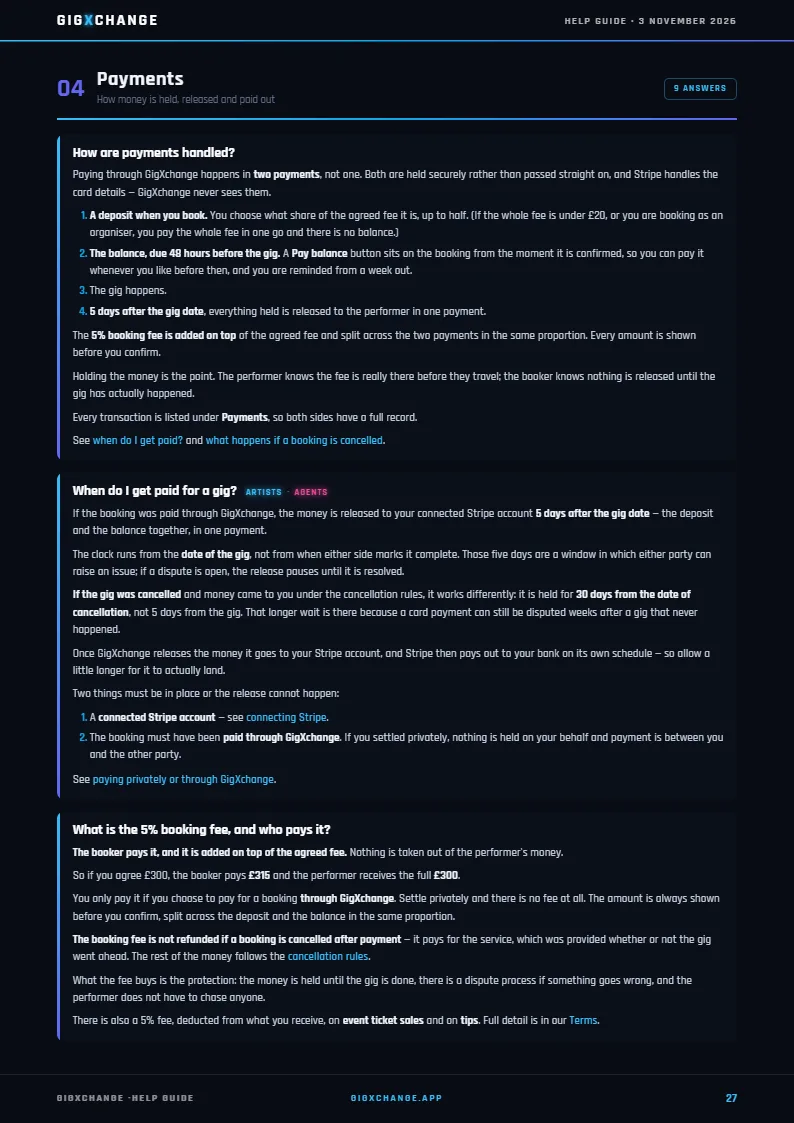
Paying through GigXchange happens in two payments, not one. Both are held securely rather than passed straight on, and Stripe handles the card details — GigXchange never sees them.
The 5% booking fee is added on top of the agreed fee and split across the two payments in the same proportion. Every amount is shown before you confirm.
Holding the money is the point. The performer knows the fee is really there before they travel; the booker knows nothing is released until the gig has actually happened.
Every transaction is listed under Payments, so both sides have a full record.
See when do I get paid? and what happens if a booking is cancelled.
Read this answer on its own page
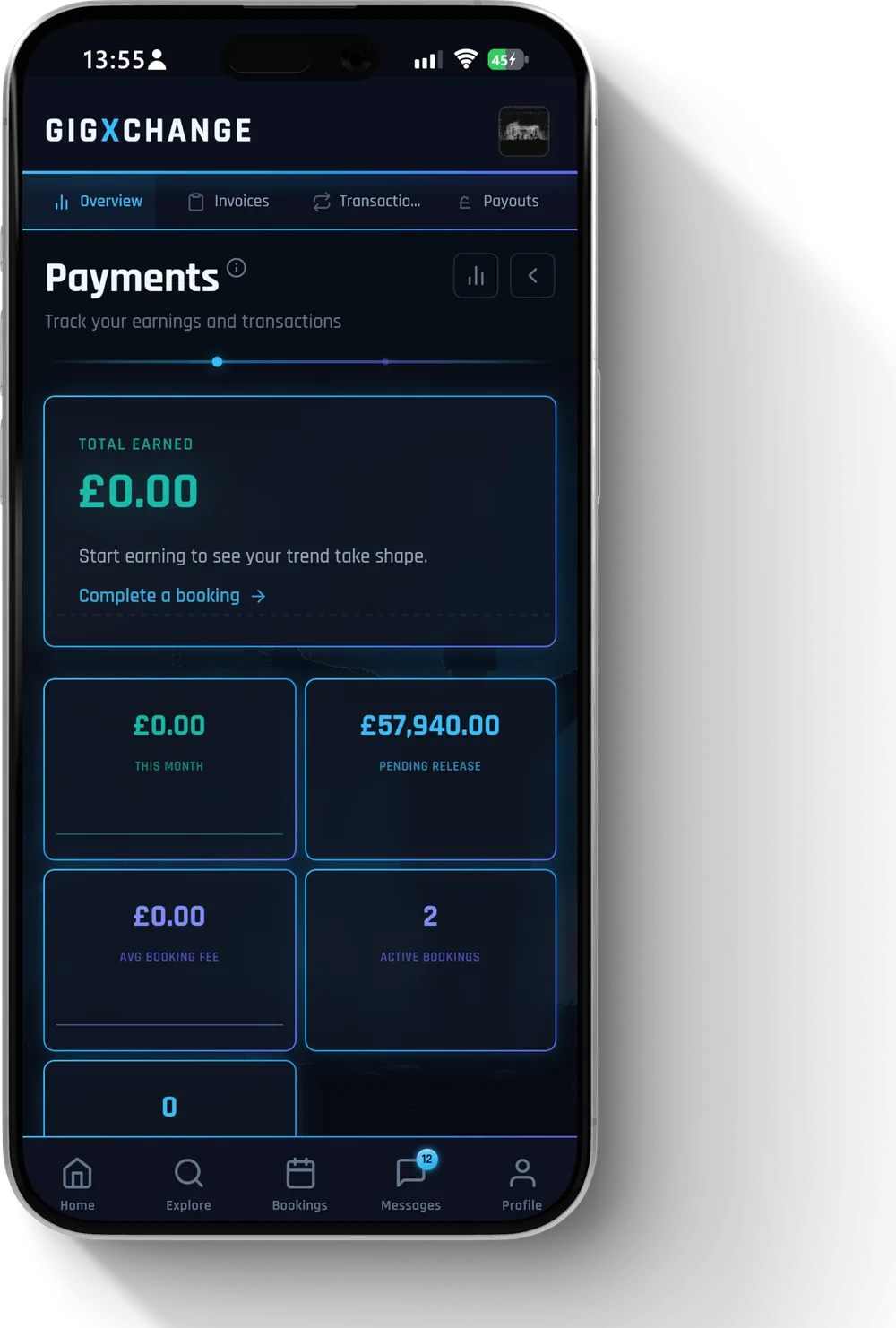 See it in the app Payments — transactions and pending releases in one place
 If the booking was paid through GigXchange, the money is released to your connected Stripe account 5 days after the gig date — the deposit and the balance together, in one payment.
The clock runs from the date of the gig, not from when either side marks it complete. Those five days are a window in which either party can raise an issue; if a dispute is open, the release pauses until it is resolved.
If the gig was cancelled and money came to you under the cancellation rules, it works differently: it is held for 30 days from the date of cancellation, not 5 days from the gig. That longer wait is there because a card payment can still be disputed weeks after a gig that never happened.
Once GigXchange releases the money it goes to your Stripe account, and Stripe then pays out to your bank on its own schedule — so allow a little longer for it to actually land.
Two things must be in place or the release cannot happen:
See paying privately or through GigXchange.
Read this answer on its own page
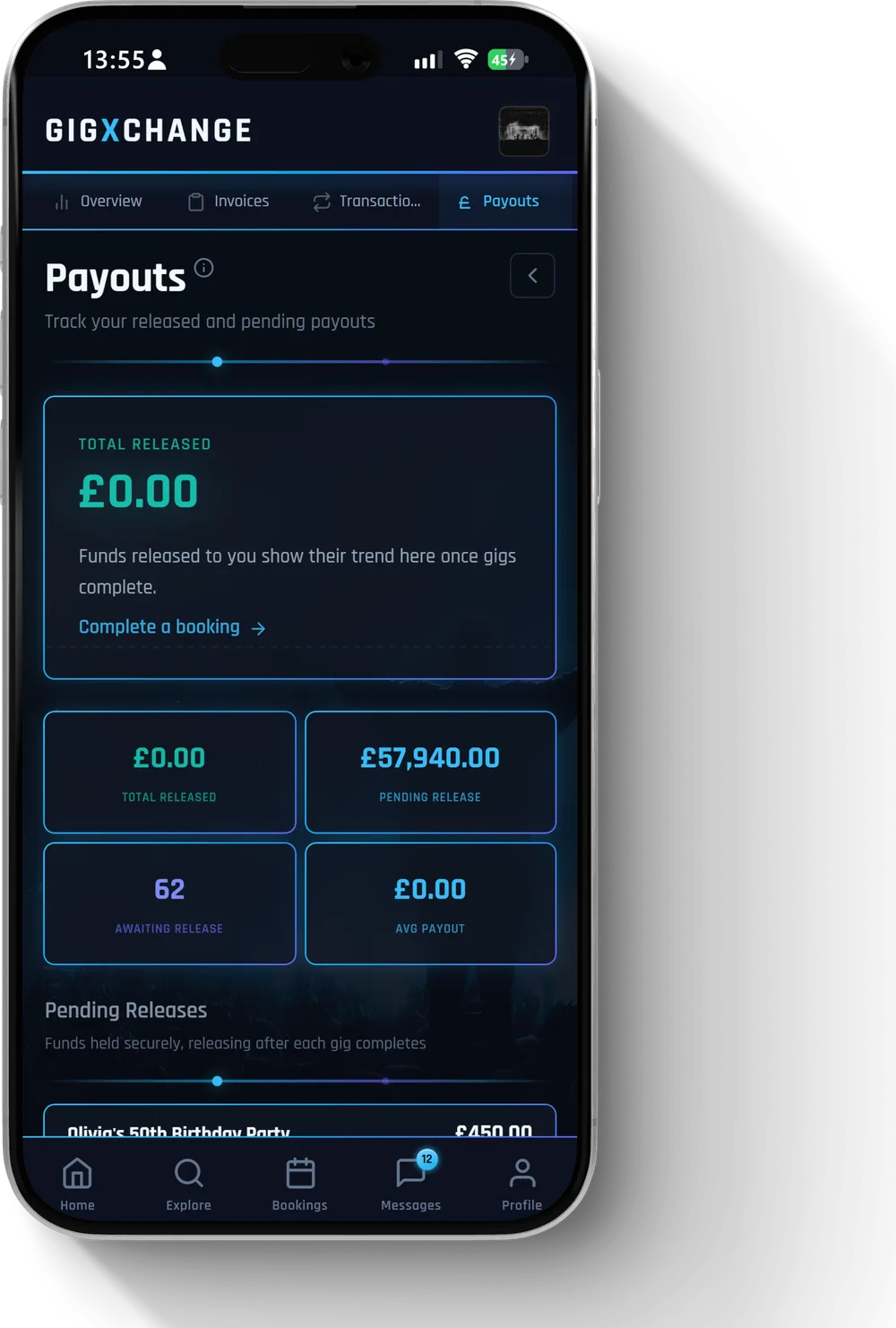 See it in the app Payouts — what has been released and what is still to come
 The booker pays it, and it is added on top of the agreed fee. Nothing is taken out of the performer's money.
So if you agree £300, the booker pays £315 and the performer receives the full £300.
You only pay it if you choose to pay for a booking through GigXchange. Settle privately and there is no fee at all. The amount is always shown before you confirm, split across the deposit and the balance in the same proportion.
The booking fee is not refunded if a booking is cancelled after payment — it pays for the service, which was provided whether or not the gig went ahead. The rest of the money follows the cancellation rules.
What the fee buys is the protection: the money is held until the gig is done, there is a dispute process if something goes wrong, and the performer does not have to chase anyone.
There is also a 5% fee, deducted from what you receive, on event ticket sales and on tips. Full detail is in our Terms.
Read this answer on its own page
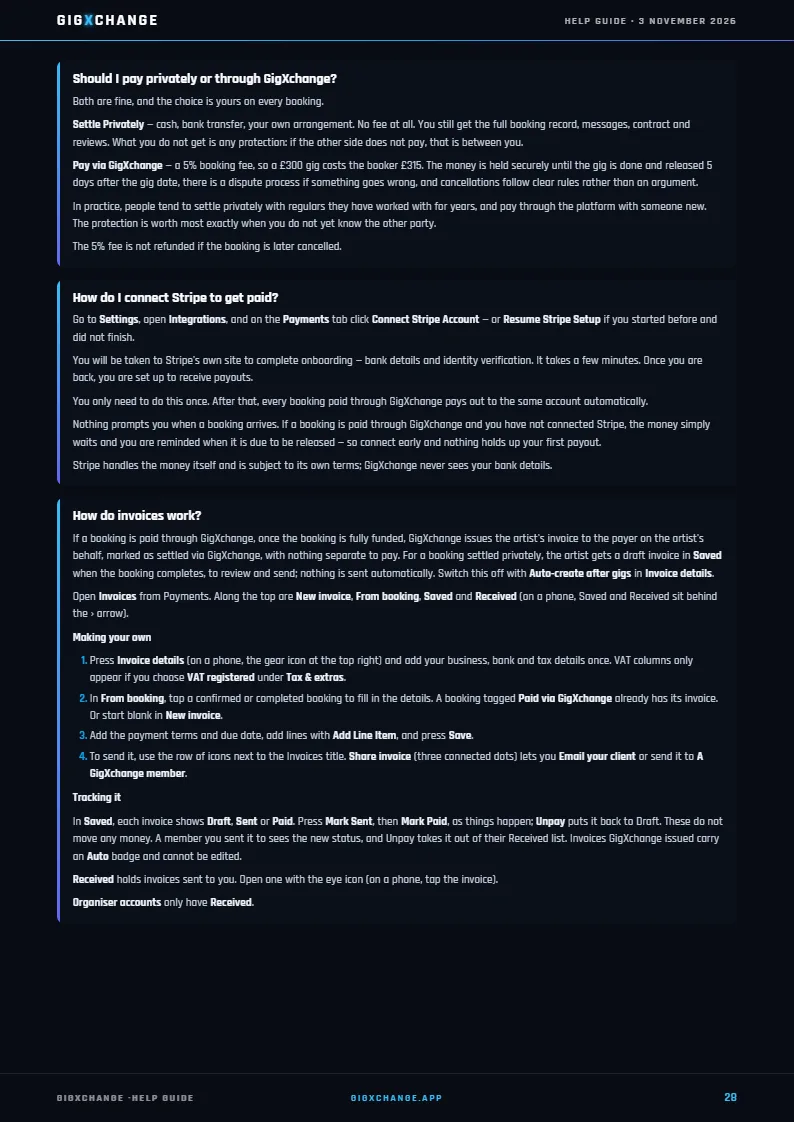
Both are fine, and the choice is yours on every booking.
Settle Privately — cash, bank transfer, your own arrangement. No fee at all. You still get the full booking record, messages, contract and reviews. What you do not get is any protection: if the other side does not pay, that is between you.
Pay via GigXchange — a 5% booking fee, so a £300 gig costs the booker £315. The money is held securely until the gig is done and released 5 days after the gig date, there is a dispute process if something goes wrong, and cancellations follow clear rules rather than an argument.
In practice, people tend to settle privately with regulars they have worked with for years, and pay through the platform with someone new. The protection is worth most exactly when you do not yet know the other party.
The 5% fee is not refunded if the booking is later cancelled.
Read this answer on its own page
Go to Settings, open Integrations, and on the Payments tab click Connect Stripe Account — or Resume Stripe Setup if you started before and did not finish.
You will be taken to Stripe's own site to complete onboarding — bank details and identity verification. It takes a few minutes. Once you are back, you are set up to receive payouts.
You only need to do this once. After that, every booking paid through GigXchange pays out to the same account automatically.
Nothing prompts you when a booking arrives. If a booking is paid through GigXchange and you have not connected Stripe, the money simply waits and you are reminded when it is due to be released — so connect early and nothing holds up your first payout.
Stripe handles the money itself and is subject to its own terms; GigXchange never sees your bank details.
Read this answer on its own page
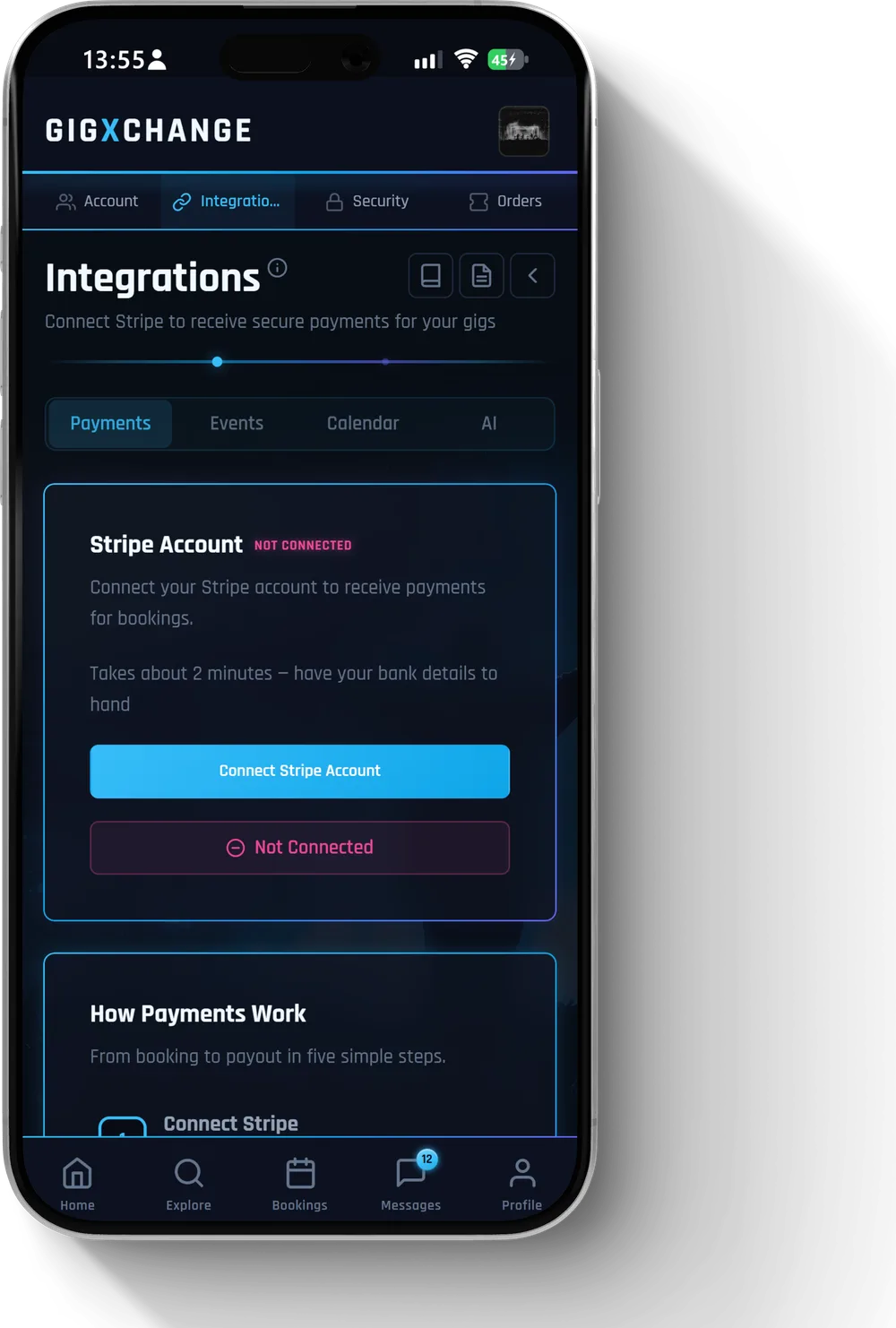 See it in the app Settings > Integrations — where you connect Stripe
 If a booking is paid through GigXchange, once the booking is fully funded, GigXchange issues the artist's invoice to the payer on the artist's behalf, marked as settled via GigXchange, with nothing separate to pay. For a booking settled privately, the artist gets a draft invoice in Saved when the booking completes, to review and send; nothing is sent automatically. Switch this off with Auto-create after gigs in Invoice details.
Open Invoices from Payments. Along the top are New invoice, From booking, Saved and Received (on a phone, Saved and Received sit behind the › arrow).
Making your own
Tracking it
In Saved, each invoice shows Draft, Sent or Paid. Press Mark Sent, then Mark Paid, as things happen; Unpay puts it back to Draft. These do not move any money. A member you sent it to sees the new status, and Unpay takes it out of their Received list. Invoices GigXchange issued carry an Auto badge and cannot be edited.
Received holds invoices sent to you. Open one with the eye icon (on a phone, tap the invoice).
Organiser accounts only have Received.
Read this answer on its own page
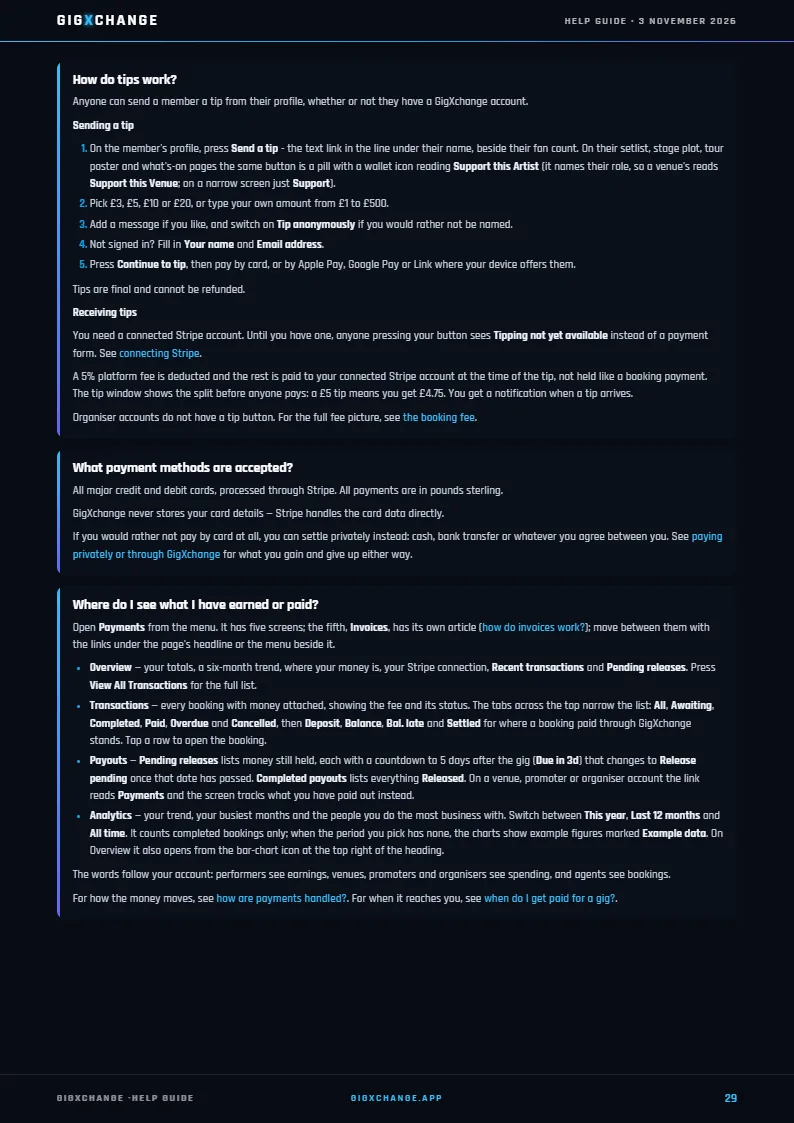
Anyone can send a member a tip from their profile, whether or not they have a GigXchange account.
Sending a tip
Tips are final and cannot be refunded.
Receiving tips
You need a connected Stripe account. Until you have one, anyone pressing your button sees Tipping not yet available instead of a payment form. See connecting Stripe.
A 5% platform fee is deducted and the rest is paid to your connected Stripe account at the time of the tip, not held like a booking payment. The tip window shows the split before anyone pays: a £5 tip means you get £4.75. You get a notification when a tip arrives.
Organiser accounts do not have a tip button. For the full fee picture, see the booking fee.
Read this answer on its own page
All major credit and debit cards, processed through Stripe. All payments are in pounds sterling.
GigXchange never stores your card details — Stripe handles the card data directly.
If you would rather not pay by card at all, you can settle privately instead: cash, bank transfer or whatever you agree between you. See paying privately or through GigXchange for what you gain and give up either way.
Read this answer on its own page
Open Payments from the menu. It has five screens; the fifth, Invoices, has its own article (how do invoices work?); move between them with the links under the page's headline or the menu beside it.
The words follow your account: performers see earnings, venues, promoters and organisers see spending, and agents see bookings.
For how the money moves, see how are payments handled?. For when it reaches you, see when do I get paid for a gig?.
Read this answer on its own page
Talking to the other side, and sending offers in the chat.
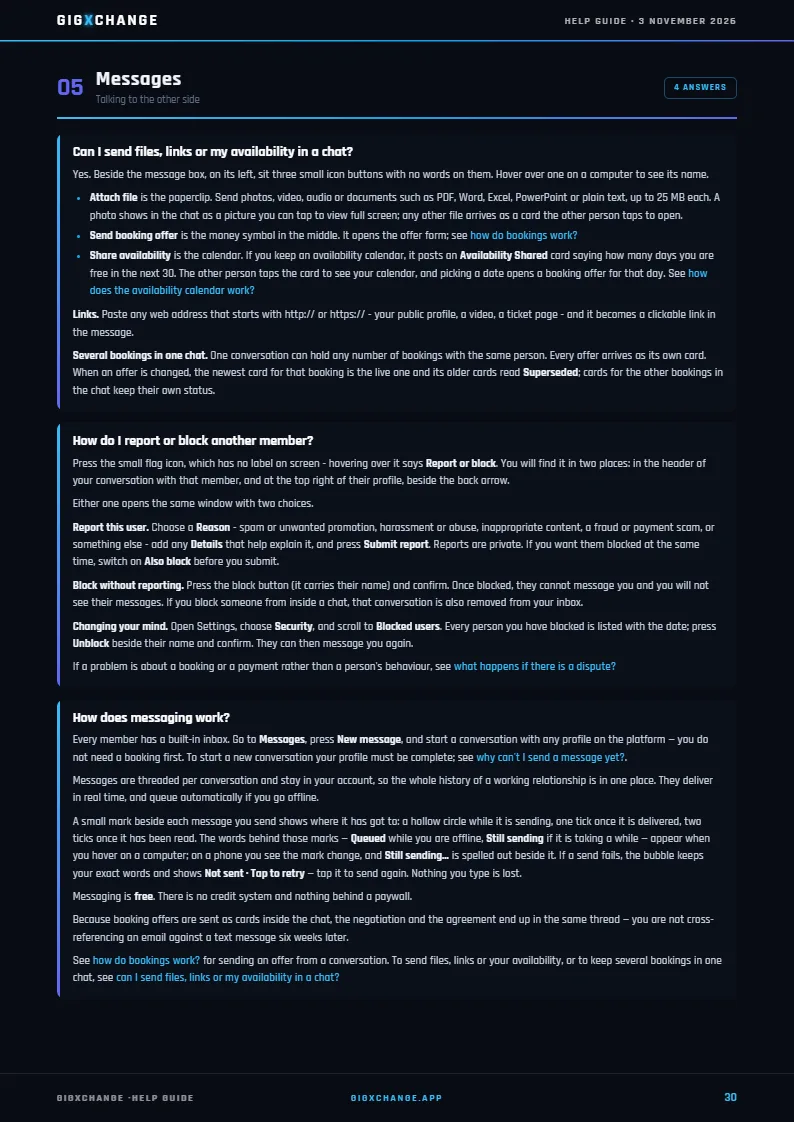
Yes. Beside the message box, on its left, sit three small icon buttons with no words on them. Hover over one on a computer to see its name.
Links. Paste any web address that starts with http:// or https:// - your public profile, a video, a ticket page - and it becomes a clickable link in the message.
Several bookings in one chat. One conversation can hold any number of bookings with the same person. Every offer arrives as its own card. When an offer is changed, the newest card for that booking is the live one and its older cards read Superseded; cards for the other bookings in the chat keep their own status.
Read this answer on its own page
Press the small flag icon, which has no label on screen - hovering over it says Report or block. You will find it in two places: in the header of your conversation with that member, and at the top right of their profile, beside the back arrow.
Either one opens the same window with two choices.
Report this user. Choose a Reason - spam or unwanted promotion, harassment or abuse, inappropriate content, a fraud or payment scam, or something else - add any Details that help explain it, and press Submit report. Reports are private. If you want them blocked at the same time, switch on Also block before you submit.
Block without reporting. Press the block button (it carries their name) and confirm. Once blocked, they cannot message you and you will not see their messages. If you block someone from inside a chat, that conversation is also removed from your inbox.
Changing your mind. Open Settings, choose Security, and scroll to Blocked users. Every person you have blocked is listed with the date; press Unblock beside their name and confirm. They can then message you again.
If a problem is about a booking or a payment rather than a person's behaviour, see what happens if there is a dispute?
Read this answer on its own page
Every member has a built-in inbox. Go to Messages, press New message, and start a conversation with any profile on the platform — you do not need a booking first. To start a new conversation your profile must be complete; see why can't I send a message yet?.
Messages are threaded per conversation and stay in your account, so the whole history of a working relationship is in one place. They deliver in real time, and queue automatically if you go offline.
A small mark beside each message you send shows where it has got to: a hollow circle while it is sending, one tick once it is delivered, two ticks once it has been read. The words behind those marks — Queued while you are offline, Still sending if it is taking a while — appear when you hover on a computer; on a phone you see the mark change, and Still sending… is spelled out beside it. If a send fails, the bubble keeps your exact words and shows Not sent · Tap to retry — tap it to send again. Nothing you type is lost.
Messaging is free. There is no credit system and nothing behind a paywall.
Because booking offers are sent as cards inside the chat, the negotiation and the agreement end up in the same thread — you are not cross-referencing an email against a text message six weeks later.
See how do bookings work? for sending an offer from a conversation. To send files, links or your availability, or to keep several bookings in one chat, see can I send files, links or my availability in a chat?
Read this answer on its own page
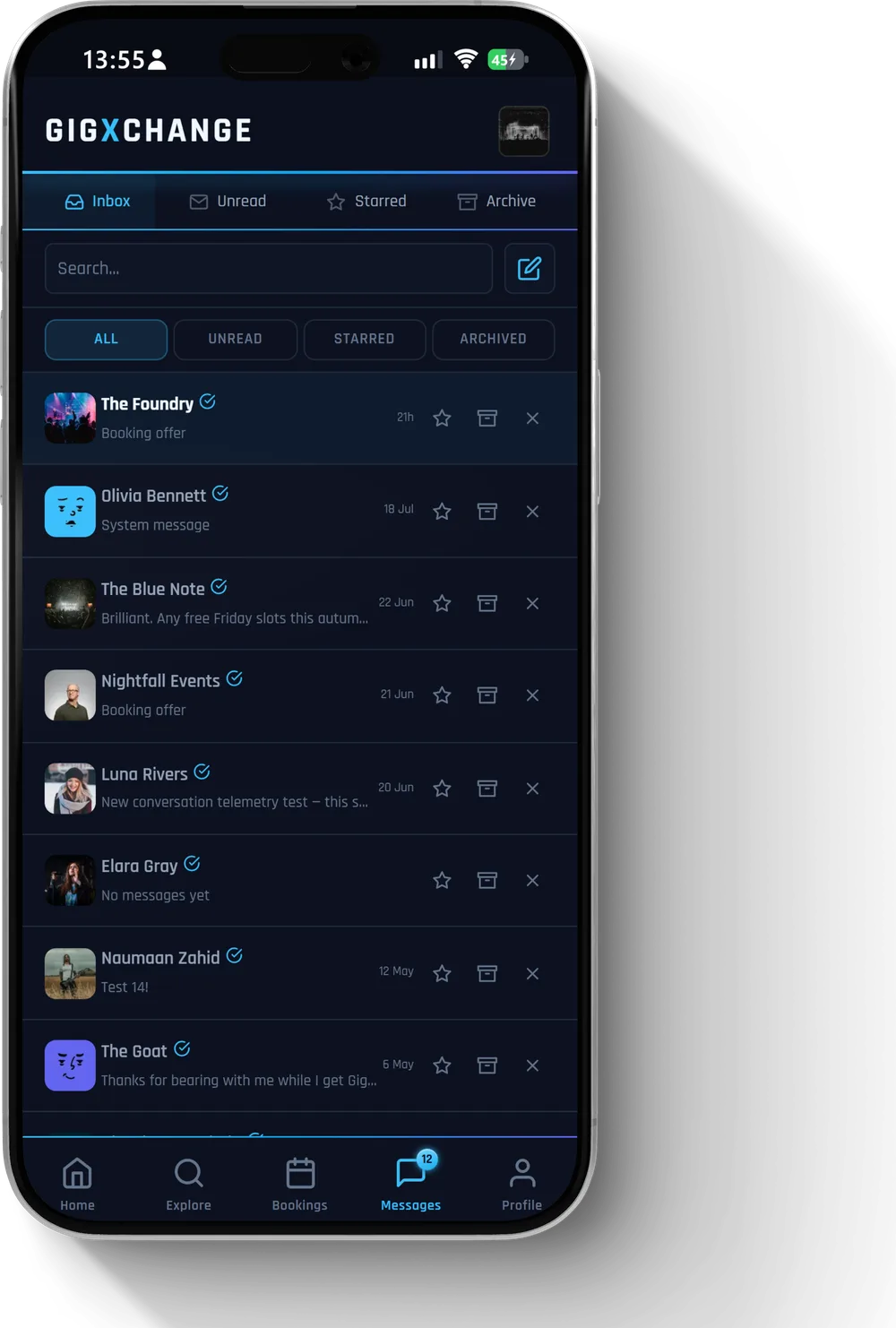 See it in the app Your inbox — every conversation in one list
 To start a new conversation, your profile needs to be complete first. This keeps GigXchange for real members, not spam. The same applies to sending an offer, applying for a gig, or sharing an invoice, flyer or stage plot, because each one starts a conversation.
If you send before your profile is complete, nothing is sent. In a new conversation your words stay in the box; in an existing one the message shows Not sent · Tap to retry.
Depending on your version of the app, you will see either a message that names what is still missing, with a Complete profile button that opens your Profile (My Details if you organise events), or just Could not start the conversation. The reason is the same.
A complete profile has:
Organisers do not need a link. Tap the event types that apply under Events you organise on My Details instead.
If you are on the team of a band or venue whose profile is complete, you can message without completing your own. With a team-only login, the band or venue profile is the one to complete, and the button opens your Dashboard.
You can always reply. Once someone has written to you in a one-to-one conversation, you can answer straight away. You can also message the GigXchange team at any time.
When you are done, go back to Messages. For a new conversation, press the pencil icon at the top of your list (hovering it says New message) and type it again. In an existing one, tap Not sent · Tap to retry.
Read this answer on its own page
Listings, ticketing and your venue page.
Yes. First connect your account: open Settings, go to Integrations, and under Eventbrite press Connect Eventbrite. You sign in on Eventbrite's own site and are sent straight back — GigXchange never sees your Eventbrite password.
Once connected, open one of your events and press Push to Eventbrite. The button only appears on events that are not private — a private event has nowhere public to go. The event is created as a draft in your own Eventbrite account — you set the ticket prices and publish it over there. Tickets sell in your own Eventbrite account, and that money goes to you directly. After a push, the button becomes View on Eventbrite and takes you straight to it.
Before you push, it pays to have the event page complete: the description, end time, expected attendance and cover image all feed the Eventbrite draft — the description carries over, the end time sets the running time, and expected attendance sets the capacity. A complete event page lands as a complete draft.
You can disconnect Eventbrite at any time from the same Integrations screen — once you are connected that button reads Disconnect in place of Connect Eventbrite.
Read this answer on its own page
No. When you create or edit an event, fill in Venue Location with the town or city, then use the Venue field just below it — that one searches our venue directory as you type, but you are never forced to pick from it.
If the venue is listed, choose it from the results. Your event is then linked to that venue's directory page, and the venue name on your event becomes a link to it. Picked the wrong one? Press Change and search again.
If the venue is not in the directory, keep typing — whatever you write is used as the venue name, exactly as you typed it. Picking from the list does not create new venue pages, and typing a name does not either; it simply labels your event.
If the directory search cannot be reached for a moment, your typed name is still saved, so you can carry on creating the event.
To announce the event to the public once it is booked, see listing a gig in the directory.
Read this answer on its own page
Yes. Every venue profile has a public What's On page - your profile address with /whats-on on the end. Anyone can open it without an account, so it is the link to put in your bio, on posters or on your own website.
To find and copy it, open the Dashboard, press Your Links, and look under What's On.
The page lists your upcoming events, soonest first, with the date, day and times. It shows only events you have published - drafts and past nights stay off it. Each event has a button: Get Tickets when the event has tickets on sale, through GigXchange or a ticket link you added, otherwise View Event. If nothing is scheduled, visitors see a note to check back soon.
Below the programme the page also shows your Regular Nights, a Good to Know panel with your venue type, capacity, usual live nights and opening hours, a map, access details, photos and recent reviews - all taken from your venue profile. Fill those in on your profile to fill out the page.
To add a night to the page, create the event and press Publish Event - see how do I create an event?
Fans can also sign up on the GigXchange website for a free weekly email of gigs in their town. That is a separate list run by GigXchange, not your own fan list - to email your own fans, see how do I send an update to my fans?
Read this answer on its own page
Open Events and choose Create Event. On a phone, tap your profile picture at the top right, then Events. Artist, venue, agent and promoter accounts can create events; organiser accounts cannot, as they do not have the Events section.
Fill in the page from the top:
Already booked the act through GigXchange? Under Start from a booking, press Create from an existing booking and the event takes that booking's details.
Add a cover photo with Upload photo or Image library at the top right of the cover preview (on a phone these are an upload-arrow icon and a picture icon), then drag the photo to frame it.
When you are ready, press Publish Event at the bottom of the cover preview, beside Save as Draft. It stays greyed out until you have an Event title and a Date. It then shows on the Events page for other members to find. Not ready? Press Save as Draft — drafts stay off the Events page.
My Events lists everything you have created, with tabs for Published and Draft. Open an event to change it: press Edit Event, make your changes, then Save Event. To back out without saving, use Cancel inside the card — not Cancel Event, which cancels the event itself. A draft also has a publish icon — an upward arrow in the page header (hovering says Publish event). The share icon at the end of that row, just before Back (hovering says Share event), gives you the event's link.
Read this answer on its own page
The public gig directory takes submissions from anyone. On the gig directory or a city page, press Submit a Gig. On a venue page there is no button — use the inline add your gigs link in the text. Either way a form titled List your gig opens: fill in the first step, continue to the second, and finish with List gig. It is free, and you do not need an account.
You will need the act, the venue, the city and the date. Everything else helps but is optional: start and doors times, entry fee, ticket link, venue address and postcode. A description is required — a few lines on the line-up and the night, so someone deciding whether to come has something to go on.
Your email is required too. That is how we come back to you if something needs checking.
Submissions are reviewed before publishing, so a gig does not appear the instant you send it. Once it is live it sits in the directory alongside every other gig in that city, and on the venue's own page.
This is different from posting a gig inside GigXchange. The directory listing announces a gig that is already booked; posting a gig advertises an open slot for artists to apply to. If you have a night to fill, you want that one instead.
Read this answer on its own page
Open Events and choose Calendar. It is on venue accounts only.
The top of the page counts your upcoming events, acts confirmed, applications and open gigs. Below it, Needs your action lists the nights waiting on you - open gigs with applications to review, gigs nobody has applied to yet, events with no act booked, and days where two or more acts are confirmed.
Your month marks each date as Booked, Needs an act, Applications or No event. Step through months with Previous and Next. Tap a date to see what is on, which act is booked, any gig listed to fill it and its applications. On a future date you can press + Add event, Post a gig to fill this date or Manage event, depending on what the night needs. With no date picked, the shortcuts beside the grid let you post a gig, post an event, or start a poster or flyer.
To see these dates in Google or Apple Calendar, use Sync to your calendar: Subscribe adds a live feed that updates itself, Copy link copies it, and Download once saves a one-off file. The link carries a private key, so keep it to yourself - anyone with it can read your calendar.
Coming up at the foot of the page shows your next events.
Bringing your own calendar in is a separate setting: see can I sync my calendar with Google or Outlook?
Read this answer on its own page
You choose who sells the ticket. Every event has this box — headed Tickets on Create Event and Ticketing on the event's own page — with a switch between two modes:
A new event starts in 3rd Party Ticketing. Add the link to the page where people buy; leave it empty if it is pay on the door. The box always tells you what buyers will see once you publish — your own link, or no way to buy online — so you can fix it before it goes live.
To sell through GigXchange, switch the box to GigXchange Ticketing. Save the event, then open it and press Add Tier — a name such as Early Bird or VIP, a price and a quantity. Until a tier exists, Add Tier is the only control there; once one does, the Ticket Tiers list appears along with Guest List and Scan Tickets for the door. Buyers press Buy Tickets on your public event page. Until at least one tier exists, buyers still get your third-party links.
A fee applies to ticket sales through GigXchange — see is GigXchange free?. If you sell on Eventbrite, you can also push the event there.
Read this answer on its own page
Open Settings and choose Orders. Tickets you bought while signed in to this account are listed there.
Each order shows its order number (it starts GX-), the event, its date and venue, the ticket type and how many, when you ordered, the total and its status. Use Active, All and Cancelled to change which orders you see, or type in the search box to find one by event, venue or order number.
On an order:
Refunds come from the organiser. GigXchange takes ticket payments on behalf of the event's organiser, who is responsible for the event and for any refund. Contact them directly if you need one.
Orders is not available on an organiser account. If it is missing from your Settings menu on any other account, it has been switched off: turn it back on in Add-ons — see hiding pages you don't use.
Selling tickets rather than buying them? See how do I sell tickets for my event?.
Read this answer on its own page
Passwords, settings, and control over your data.
Go to Sign In and choose Reset Password (under "Forgot your details?"). Enter the email address on your account and we will email you a 6-digit code.
Type the code back in, then choose a new password. It needs to be at least 12 characters and include an upper-case letter, a lower-case letter, a digit and a symbol. If the code stops working, just request another one.
If the email does not arrive, check your spam or junk folder first — reset emails often land there. Make sure you are using the same address you signed up with; if you have more than one account, it is easy to try the wrong one.
Still stuck? Get in touch and we will help you back in.
Read this answer on its own page
A passkey lets you sign in with Face ID, your fingerprint or your device PIN instead of typing your password. It works in your web browser at gigxchange.app, on your phone or your computer - passkeys are not in the GigXchange iPhone and Android apps yet.
To add one: open Settings, then Security. In the How you sign in card, choose Add a passkey and follow your device's prompt. Your phone, computer or password manager saves it.
To sign in with it: on the sign-in page, choose Sign in with a passkey. Some browsers also suggest your passkey when you tap the email box.
Passkeys usually sync between your own devices through iCloud Keychain, Google or your password manager. If one does not show up on another device, add a passkey there too.
If you have two-factor authentication turned on, we still ask for your 6-digit code after a passkey sign-in.
Your password, and Google or Apple sign-in, keep working. To remove a passkey, go back to the How you sign in card and choose Remove next to it.
Still stuck? Get in touch.
Read this answer on its own page
Yes. You can connect an AI assistant such as Claude or ChatGPT to your account, so you can ask it about your gigs and the public directory in your own words.
You start from inside the assistant, not from GigXchange. It takes about a minute and needs no keys or codes.
In Claude: open Customize, then Connectors, search for GigXchange and choose Connect. Or choose Add, then Add custom connector, paste https://mcp.gigxchange.app/mcp and choose Connect.
In ChatGPT: open Plugins, find GigXchange and choose Install plugin, then Connect if it asks.
In Codex: Settings, then Integrations, then Plugins, then Add. Set the type to Streamable HTTP, paste the same address and save.
Either way, the assistant then opens a GigXchange sign-in page. Log in, read what the assistant is asking for, and approve it. The connection appears in your account under Connected AI assistants.
To find it later, or to add another assistant, open Settings, then Integrations, then the AI tab. That tab opens on Your AI keys (an optional place to save your own Claude or OpenAI key) — scroll past it; Connected AI assistants and Assistant activity are below.
To end a connection, press Disconnect next to it. Access stops straight away. Signing out of GigXchange does not disconnect an assistant — it stays connected until you disconnect it.
Before you connect, it is worth knowing what your assistant can see and what it can do on your behalf.
Read this answer on its own page
Yes. Go to Settings, open Account, and scroll to Danger zone, then choose Delete account. A Delete Account dialog opens. You will be asked to type DELETE to confirm.
Two things to know before you do:
So deleting is reversible for four weeks, then final. If you are stepping away rather than leaving for good, the grace period means you are not making a permanent decision on a bad day.
Full detail on what is erased and what is retained is in our Privacy Policy.
Read this answer on its own page
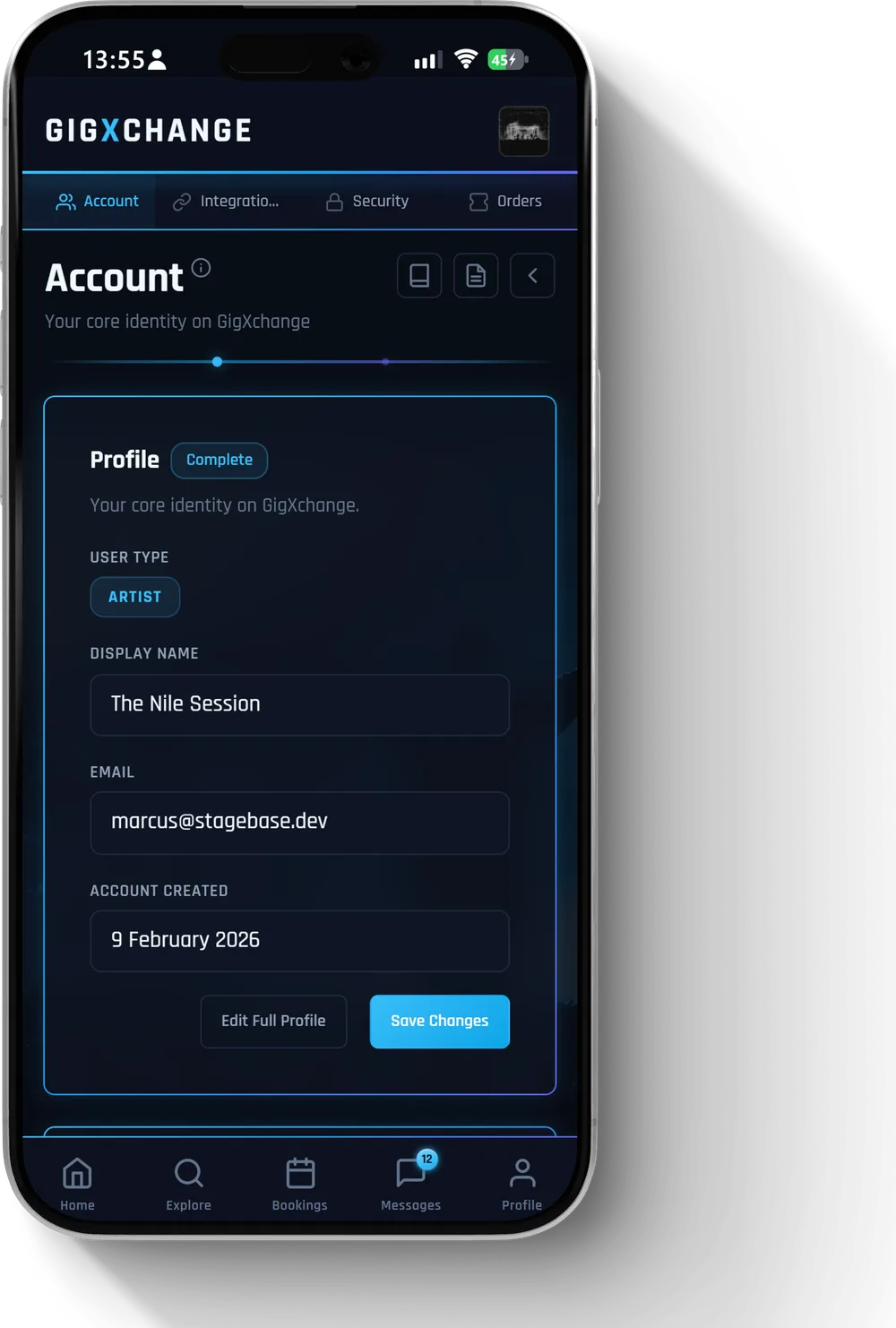 See it in the app Settings > Account, where the Danger zone lives
 Yes. Open Settings and choose Add-ons — under Your menus, every optional page has a switch.
Switch a page off and it disappears from that menu. Nothing is deleted: your data stays exactly where it was, and switching the page back on returns it exactly as it was.
A few core pages cannot be switched off, so you cannot lock yourself out of the essentials.
New features often arrive here first as optional pages, switched off by default — so your menu only grows when you choose. Classifieds, the artists' noticeboard, is one of these: see how do I find other musicians to play with?
Your choices are saved to your account, so they follow you across devices — the same menus on the web and in the app.
Read this answer on its own page
Yes, on a venue account. Each venue you add gets its own profile, calendar and team, and you switch between them.
Adding a venue: open Settings and go to Team & site management. On the Add a venue row, press the plus icon at its right-hand end. That opens Your Venues; press + Add a venue, fill in the Venue name, City and Venue type, and press Add venue. This creates the new venue's profile - fill in the rest of its details from its profile afterwards. You can also start from the venue icon at the top of the Dashboard; it has no words on screen, and hovering it says Add a venue, or Manage venues once you run more than one.
Switching between venues: once you run two or more: on a computer, open the account menu from your profile picture at the top right and pick the venue under Acting venue - a tick marks the current one. On a phone, tapping your picture opens your account page instead, so switch from Your Venues. Your profile and availability then show that venue. Your Venues lists them too, and choosing one there switches as well.
Sharing the work: in the same Team & site management section you can invite people and choose under Which venues they help manage. In Settings, the add and invite rows appear only for the person who leads the team. See can my band members help run our profile?
Read this answer on its own page
Only if you turn it on. Every connection starts read-only, and acting is a separate switch for each assistant: Settings, then Integrations, then the AI tab, then Allow my assistant to act.
Turning it on is one decision that covers everything an assistant can do for you. It is not a menu you pick from, so it is worth knowing the full list before you switch it on:
The last four matter most. An assistant with this switch on can commit you to work and can send money paperwork in your name, so only turn it on for an assistant you trust.
Nothing happens quietly. Every action is written to Assistant activity in the same panel, and you get a notification when one happens, so you can see and undo anything you did not intend.
You can turn the switch back off at any time, or press Disconnect to end the connection entirely. Both take effect immediately.
The full terms covering bookings and payments are in our Terms.
Read this answer on its own page
Yes, on an artist account or a venue account. Open Settings and find the Band team section — venues see Team & site management instead. (Agent, promoter and organiser accounts do not have it.) Choose Invite someone. In the Invite someone to your team dialog, put their address under Their email, pick their Role, choose Which profiles they can help with, and switch on I have this person's permission to invite them by email — if you miss it, pressing Send invite just shows an error and nothing is sent.
If they are already on GigXchange they join your team straight away, with no email. Otherwise they receive an email invitation. Accepting it lets them set their own name and password and join your team — they do not need their own separate account first.
From then on they can help run the profile end to end — availability, bookings, events and profile edits. Payment details stay yours alone. For a venue, anyone you add can manage the venue end to end: bookings, availability, gigs and events.
Every change a team member makes is recorded, so you can always see who did what. And you stay in control: you can remove a member, or revoke an invite that has not been accepted yet, from the same section at any time.
This is different from running two roles yourself — a team shares one profile, while separate roles need separate accounts. See can I have more than one role?
Read this answer on its own page
Open Settings, then Security. In the How you sign in card, Sign-in email shows the address you sign in with now. Choose Change, type the new address under New sign-in email, and choose Send codes.
We send a 6-digit code to your current address and a second one to the new address. Enter them under Current email code and New email code, then choose Confirm change. The codes last 1 hour. If you leave the page and come back within the hour, it picks up where you left off.
Nothing arrived? Check your spam or junk folder first. Once the short countdown on the page finishes, you can choose Send new codes - the new pair replaces both old codes.
When the change goes through, the page tells you that you now sign in with your new address. Use that address from then on, including for resetting your password.
Only for email sign-in. The Sign-in email section appears on accounts that sign in with an email address and password. If you only ever sign in with Google, Microsoft or Apple, it is not shown.
Read this answer on its own page
Every member has a personal referral code. Pressing it copies a sign-up link with your code built in, and anyone who joins through that link is linked to you.
Where to find it:
Paste the link into a message, an email or a post. The person signs up through it as normal; there is nothing extra for them to type.
The reward on offer for a referral is shown under Invite Friends on your account page.
Read this answer on its own page
Open Settings, then Security, and look at Where you're signed in in the How you sign in card. It lists the phones and computers signed in to your account in the last 30 days.
Each row is named after the browser and device, such as "Chrome on Windows" or "Safari on iPhone" - or "GigXchange app on iPhone" or "GigXchange app on Android" for our phone app. On an iPhone, a GigXchange link opened inside another app, such as your email app, can also show as "GigXchange app on iPhone". Devices with the same name share one row. Underneath it says when that device was last active, when it signed in, and roughly which country it was in - or Location not recorded. The country is approximate: a VPN or a mobile network can show somewhere else. The device you are using now is listed first.
To sign out a device, choose Sign out at the end of its row - if the row covers more than one device with that name, it signs them all out. To sign out everything except the device in your hand, choose Sign out of all other devices - beside the heading on a computer, at the foot of the list on a phone. Either way you are asked to confirm first. The other devices are signed out the next time they check in, within the hour; the one you are using stays signed in.
See a device you do not recognise? Sign it out, then set a new password under Change password at the top of the same page and choose Update password.
Read this answer on its own page
Open the menu: Dashboard, then Feedback. Every post there is read, and the top-voted ideas get built first.
To post, press New request, or pick one of the four ways in beneath it: Request a feature, Improve something, Report a bug or Ask a question. A form opens with that Type already chosen (you can change it). Give it a Title and a Description, add up to three images under Attachments if a picture helps, then press Post Feedback.
For a bug, say what you did, what you expected, and what happened instead. A screenshot saves a lot of back and forth.
Everyone's posts sit underneath, and you can filter them by type and status or use Search posts... to check whether someone has already asked. Then:
Each post carries a status, so you can see whether it is still being looked at, planned, being built, shipped or declined.
You will also meet these posts elsewhere: Community feedback on your dashboard (with New post to start one) and Being discussed on What's New.
Feedback is public to other members. For a problem with a booking or a payment, use contact support instead.
Read this answer on its own page
Open Settings, then Security. In the How you sign in card, find Two-factor authentication and choose Enable 2FA. You need an authenticator app on your phone.
Scan the QR code that appears with your authenticator app. If you cannot scan it, type the Manual entry key into the app instead. Then enter the 6-digit code the app shows under Verification code and choose Verify & enable.
From then on, each time you sign in we ask for the current code from your app - however you sign in: with your password, a passkey, an email code, or Google, Microsoft or Apple.
To turn it off, go back to the same card and choose Disable 2FA, then Disable to confirm.
Lost your phone? On the screen that asks for your code, choose Lost your phone?, then Email me the link. We email a link to the address you sign in with. Open it and choose Confirm recovery: we sign you out on every device, and 24 hours later we remove your two-step code and email you. After that you sign in with just your password, and you can turn two-factor back on in Settings.
Found your phone in the meantime? Sign in with your code before then and the recovery stops. And if a recovery email arrives that you did not ask for, close the page without pressing anything - nothing changes - and change your password.
Using a passkey too? See how do I sign in with a passkey?
Read this answer on its own page
Open Dashboard and choose Notifications from the bar along the top. On an organiser account there is no dashboard — open Messages and choose Notifications there instead. Everything that needs your attention lands in that one list — booking offers, replies and status changes, new messages, and new reviews — and the badge on the bell counts what you have not read yet.
A notification is marked read when you go to it. The list, the bell and the badge always agree. To clear the lot in one go, press the tick icon at the top right of the page header — it has no label on screen, but hovering it (or a screen reader) will say Mark all read.
Use the Unread filter to see only what is still waiting, or the type filter to narrow the list to one specific kind — Booking Request, Counter Offer, Payment Received, New Message, New Review and the rest. Older entries load with Load More.
Getting too many? On the same screen, switch from Feed to Preferences: each category has its own switch there. Turning a category off stops new entries of that kind appearing in the list and on the bell; the ones already there stay visible. Pause all notifications is the master switch and turns every alert off, including the badge.
Updates from GigXchange itself and member conversation live on the Noticeboard instead — see what is the Noticeboard?. Messages themselves always arrive in your inbox — see how does messaging work?.
Read this answer on its own page
A connected assistant can read five things about you: your profile, your availability calendar, your bookings, the status of your invoices, and how many unread messages you have.
That last one is a count only. The contents of your messages are never shared with an assistant, and neither is anyone else's private information.
Alongside your own account, an assistant can also search everything that is already public on GigXchange — the gig directory, open mics, venues, member profiles and press kits, and our published market figures. That part is public to anyone, with or without an account.
Reading is all a new connection can do. It cannot change anything on your account unless you separately switch that on — see letting your assistant act for you.
You can see exactly what your assistants have been doing. Open Settings, then Integrations, then the AI tab, and look at Assistant activity — every action they have taken on your account, newest first.
If you would rather it stopped, press Disconnect next to that assistant. Access ends immediately.
Read this answer on its own page
The Noticeboard is where you find out what is going on at GigXchange — updates, heads-ups and what is coming next.
Open it from the menu: Dashboard, then Noticeboard. There is also a Noticeboard link in the My activity chapter of your dashboard, and a dot beside it means something has been posted since you last looked.
It has two halves:
Every post is a conversation. Open one and you can reply underneath it, and other people can reply to you. When someone replies to your post, you get a notification that takes you straight back to that thread.
You can start your own post on the Community side using Start a discussion above the list. Notices are written by GigXchange, so that half is one to read rather than post to.
It is a different thing from Classifieds, which is the board for finding people to play with — see how do I find other musicians to play with?
Read this answer on its own page
Disputes, dead ends, and how to reach us.
Nine times out of ten it is the profile rather than the message.
Work through these in order:
On messages themselves: be specific. A short note naming the venue, a date you are free and a link to a track gets replies. A generic "any gigs going?" usually does not.
Build up reviews as you go — a profile with a track record is a much easier yes.
Read this answer on its own page
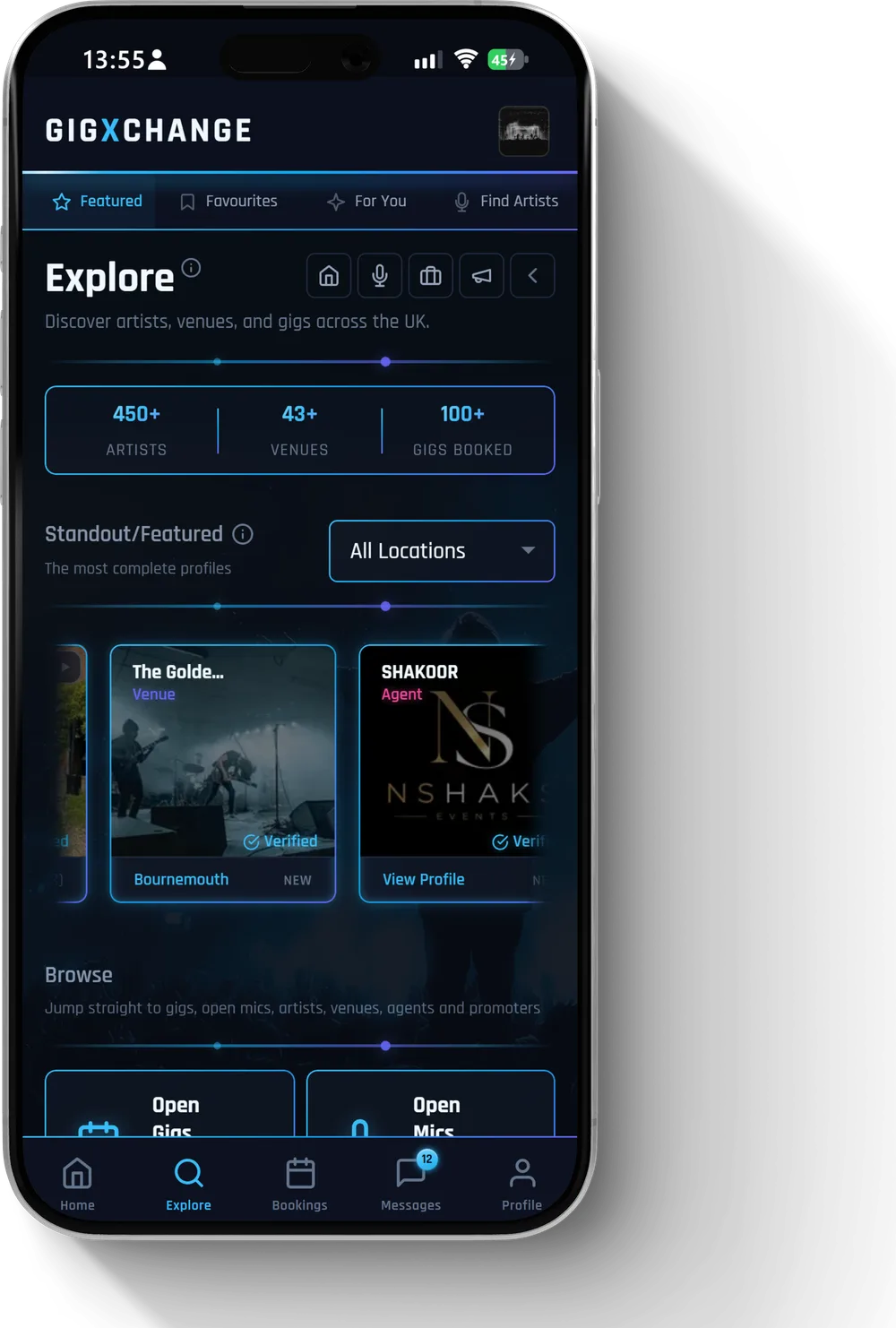 See it in the app Explore — how bookers browse, and what your card looks like to them
 If something goes wrong with a booking, start in Messages. Most problems are a misunderstanding about times, fees or what was agreed, and they get sorted in a couple of messages.
If you cannot reach an agreement, open the booking and press Raise Dispute. You pick a Category, give it a Subject and a Description, and it comes to us as a formal case rather than an email — which means it is tracked, and both sides can be asked for their side of it.
If the booking was paid through GigXchange, money we are holding is not released while a dispute is open — the release pauses until it is resolved. That is the practical value of paying through the platform rather than privately: there is something to hold.
If you settled privately, you can still raise a dispute and our team will look at it, but we are not holding any money on your behalf — any payment is a matter between you and the other party.
Full detail is in our Terms.
Read this answer on its own page
Use the contact form and we will get back to you.
To get a useful answer first time, include:
If it is about money on a booking, say whether it was paid through GigXchange or settled privately — the answer is different in each case, and it is the first thing we would otherwise have to ask.
For common questions, it is worth a look through the rest of the help pages first — most things are answered there and you will get an answer faster.
Read this answer on its own page
Every answer on this page as one document — a quick start, all 103 answers and a glossary. Flip through all 45 pages below, or download the PDF.
More ways to get the most from GigXchange
Step-by-step guides and guided walkthroughs for artists, venues, agents, promoters and organisers.
Find open opportunities near you across the UK.
Learn more about our mission and the platform.
What we’ve shipped, changed, and what’s coming next.
Our team is here to help — drop us a message and we'll get back to you as soon as possible.
| Download the help guide, PDF45 pages - every answer, a quick start and a glossary |
| Quick Start GuidesStep-by-step guides and guided walkthroughs for artists, venues, agents, promoters and organisers. | |
| Browse Live GigsFind open opportunities near you across the UK. | |
| About GigXchangeLearn more about our mission and the platform. | |
| Release NotesWhat we’ve shipped, changed, and what’s coming next. | |
| How It WorksFrom search to payout, step by step. | |
| GlossaryEvery booking and live-music term, in plain English. | |
| AI ConnectorAsk ChatGPT or Claude about UK live music. | |
| Rate CalculatorWhat to charge, or pay, for a gig. | |
| Your DataWhat we hold about you, and how to get it. | |
| Who It's ForArtists · Venues · Agents · Promoters · Organisers |
We read every message - drop us a line and a real person replies.
Stuck on something? Start here. If the answer isn’t on the page, email me and I’ll sort it — then add it for the next person.